Monitoring EC2 Instance using Prometheus and Grafana

Hi there! I'm Dinesh, a passionate Cloud and DevOps enthusiast. I love to dive into the latest new technologies and sharing my journey through blog.
Prometheus
Prometheus monitoring solution is a free and open-source solution for monitoring metrics, events, and alerts. It collects and records metrics from servers, containers, and applications. In addition to providing a flexible query language (PromQL), and powerful visualization tools, it also provides an alerting mechanism that sends notifications when needed.
Node Exporter
Node Exporter is a Prometheus exporter for hardware and OS metrics. It is designed to run on each node (e.g., an EC2 instance, server, or container) to expose metrics about the system’s performance.
Grafana
Grafana is an open-source platform for monitoring and observability, focused on providing visualization and dashboards for data from various sources, including Prometheus.
Add security group for EC2 instances:
- Add 9090 port for Prometheus

- Add 9100 port for Prometheus Node Exporter

- Add 3000 port for Grafana

Step 1 : Installing Prometheus
git clone https://github.com/Phanindra-Sangers/prometheus-monitoring.git

cd prometheus-monitoring

Install prometheus service
./install-prometheus.sh

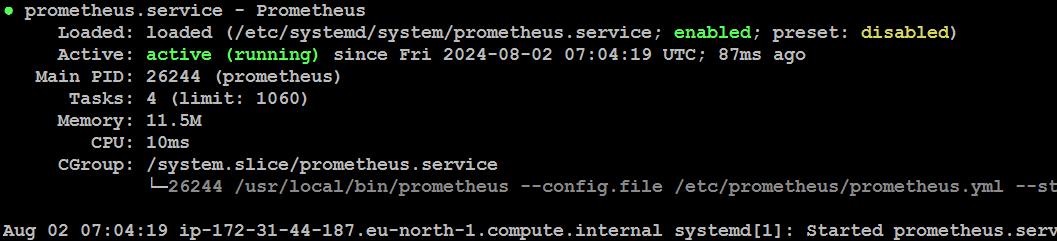
Now, Prometheus service is running
Creates a new user and add new directories for Prometheus
sudo useradd --no-create-home prometheus
sudo mkdir /etc/prometheus
sudo mkdir /var/lib/prometheus
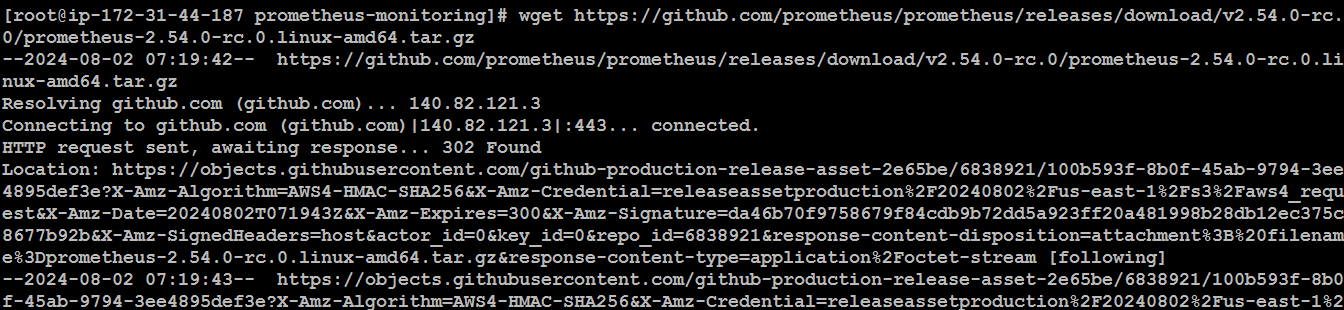
Downloads the Prometheus, extract it and put it in /usr/local/bin folder and finally delete the software
wget https://github.com/prometheus/prometheus/releases/download/v2.54.0-rc.0/prometheus-2.54.0-rc.0.linux-amd64.tar.gz
sudo cp -r prometheus-2.54.0-rc.0.linux-amd64.tar.gz /etc/prometheus

tar -xvf prometheus-2.54.0-rc.0.linux-amd64.tar.gz
sudo cp prometheus-2.54.0-rc.0.linux-amd64/prometheus /usr/local/bin
sudo cp prometheus-2.54.0-rc.0.linux-amd64/promtool /usr/local/bin

rm -rf prometheus-2.23.0.linux-amd64.tar.gz prometheus-2.19.0.linux-amd64

Configure Prometheus :
Create a prometheus.yml file at "/etc/prometheus/prometheus.yml" with the below content
cd /etc/prometheus

vi prometheus.yml
Copy the following content in yml file.
global:
  scrape_interval: 15s
  external_labels:
    monitor: 'prometheus'

scrape_configs:
  - job_name: 'prometheus'
    static_configs:
      - targets: ['localhost:9090']
Now we want to run the Prometheus as a Service so that in case of server restart service will come automatically
Create a file at "/etc/systemd/system/"
cd /etc/systemd/system/

vi prometheus.service
Copy the below content in the service file
[Unit]
Description-Prometheus
Wants-network-online.target
After-network-online.target

[Service]
User-prometheus
Group-prometheus
Type=simple
ExecStart=/usr/local/bin/prometheus \
    --config.file=/etc/prometheus/prometheus.yml \
    --storage.tsdb.path=/var/lib/prometheus/ \
    --web.console.templates=/etc/prometheus/consoles \
    --web.console.libraries=/etc/prometheus/console_libraries

[Install]
WantedBy-multi-user.target
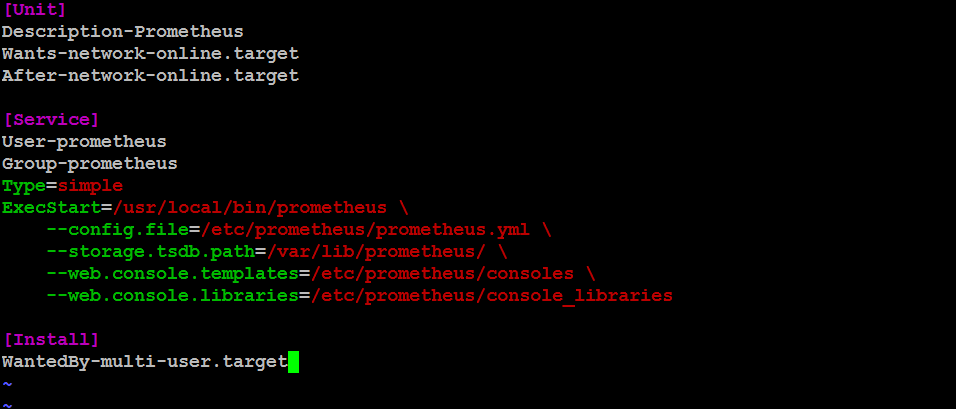
Save and exit "Press esc :wq"
Change the ownership of all folders and files which we have created to the user which we have created in the first step
sudo chown prometheus:prometheus /etc/prometheus
sudo chown prometheus:prometheus /usr/local/bin/prometheus
sudo chown prometheus:prometheus /usr/local/bin/promtool
sudo chown -R prometheus:prometheus /etc/prometheus/consoles
sudo chown -R prometheus:prometheus /etc/prometheus/console_libraries
sudo chown -R prometheus:prometheus /var/lib/prometheus
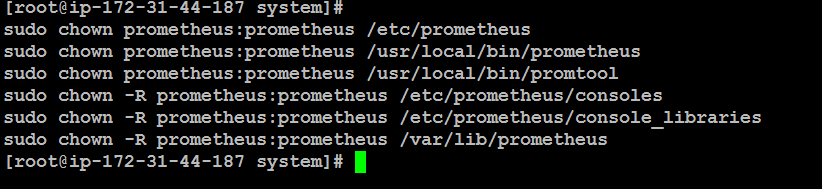
Configure the service and start it
sudo systemctl daemon-reload
sudo systemctl enable prometheus
sudo systemctl start prometheus
sudo systemctl status prometheus

Now, Prometheus service is running
Now we can access the Prometheus dashboard
http://<public ip>:9090
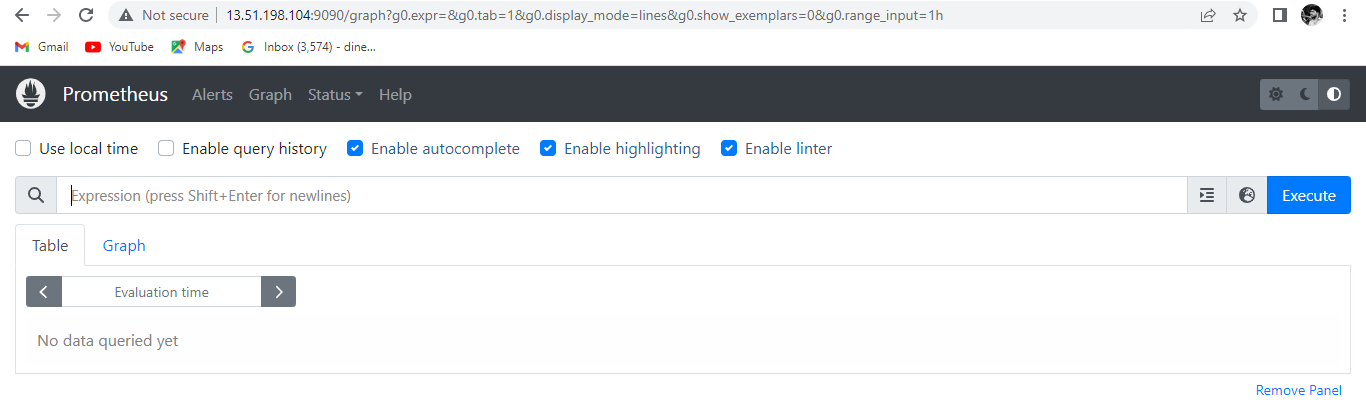
Step 2 : Install Node Exporter
To monitor your servers you need to install the node exporter on all your target machine which is like a monitoring agent on all the servers.
git clone https://github.com/Phanindra-Sangers/prometheus-monitoring.git

cd prometheus-monitoring

./install-node-exporter.sh

Now, Node exporter service is running
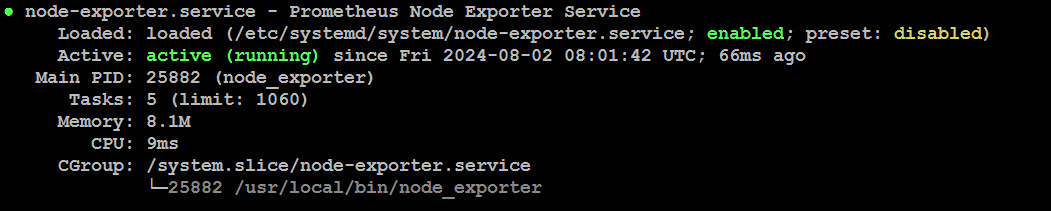
sudo useradd --no-create-home node_exporter

wget https://github.com/prometheus/node_exporter/releases/download/v1.0.1/node_exporter-1.0.1.linux-amd64.tar.gz
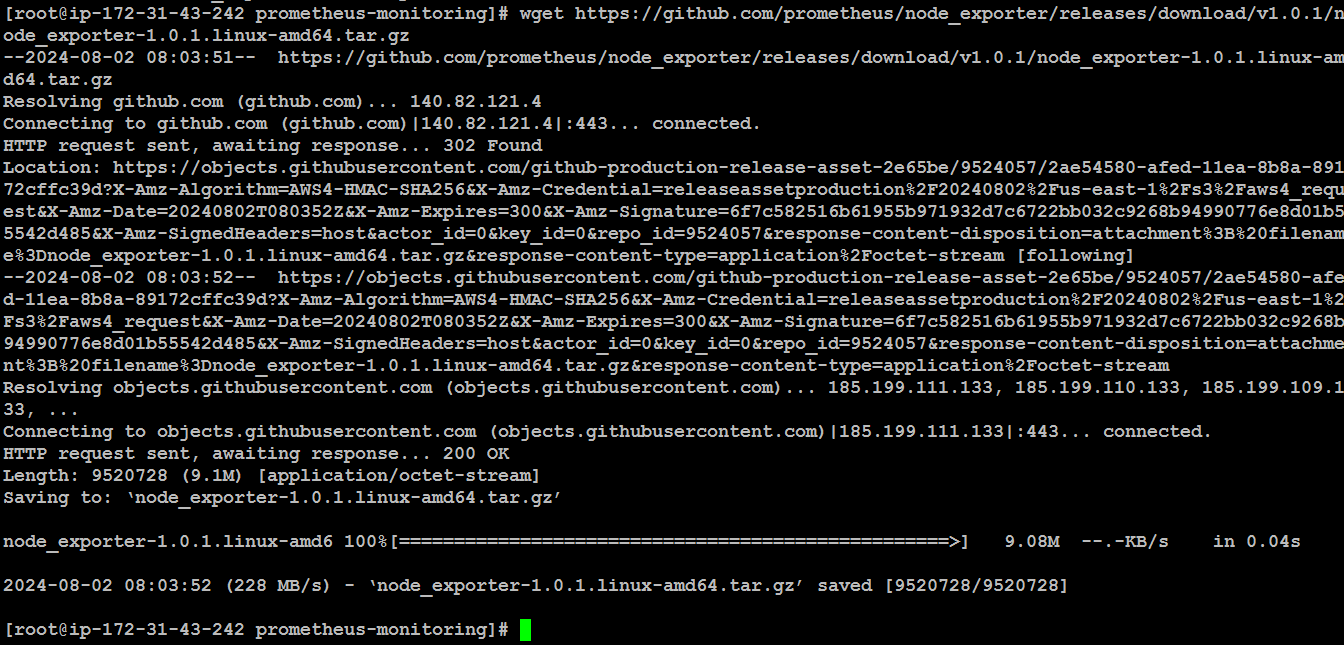
tar xzf node_exporter-1.0.1.linux-amd64.tar.gz
sudo cp node_exporter-1.0.1.linux-amd64/node_exporter /usr/local/bin/node_exporter
rm -rf node_exporter-1.0.1.linux-amd64.tar.gz node_exporter-1.0.1.linux-amd64
sudo cp node-exporter.service /etc/systemd/system/node-exporter.service
sudo systemctl daemon-reload
sudo systemctl enable node-exporter
sudo systemctl start node-exporter

sudo systemctl status node-exporter
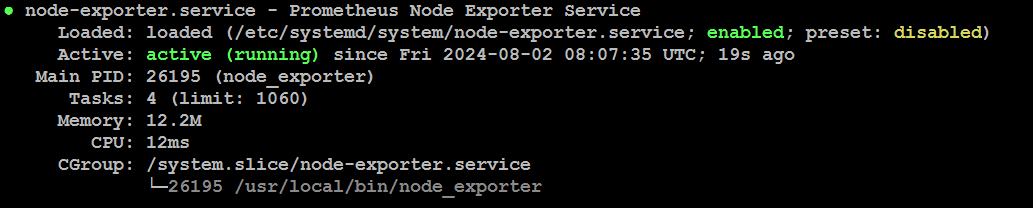
Now we can access the "Node Exporter" dashboard
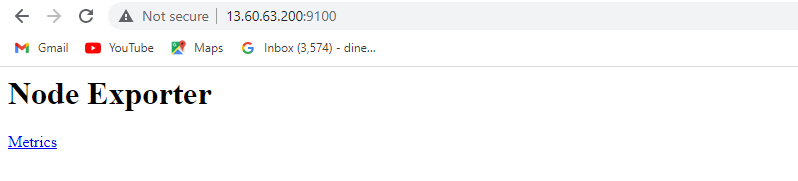
Step 3: Configure Prometheus for the Nodes
Now we will configure the Prometheus for our EC2 instance where we have installed the node-exporter.
Login to the Prometheus server and edit the file file at location in Prometheus instance
vi /etc/prometheus/prometheus.yml
Need to add Node Exporter machine ip with port
global:
  scrape_interval: 15s
  external_labels:
    monitor: 'prometheus'

scrape_configs:

  - job_name: 'node_exporter'
    static_configs:
          - targets: ['13.60.63.200:9100']
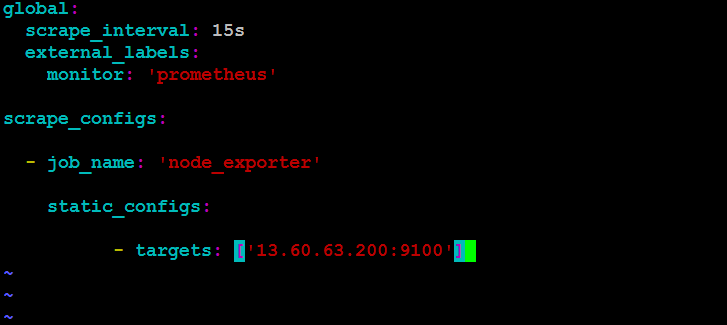
Restart the Prometheus service & Check the Prometheus service status
sudo systemctl restart prometheus
sudo systemctl status prometheus

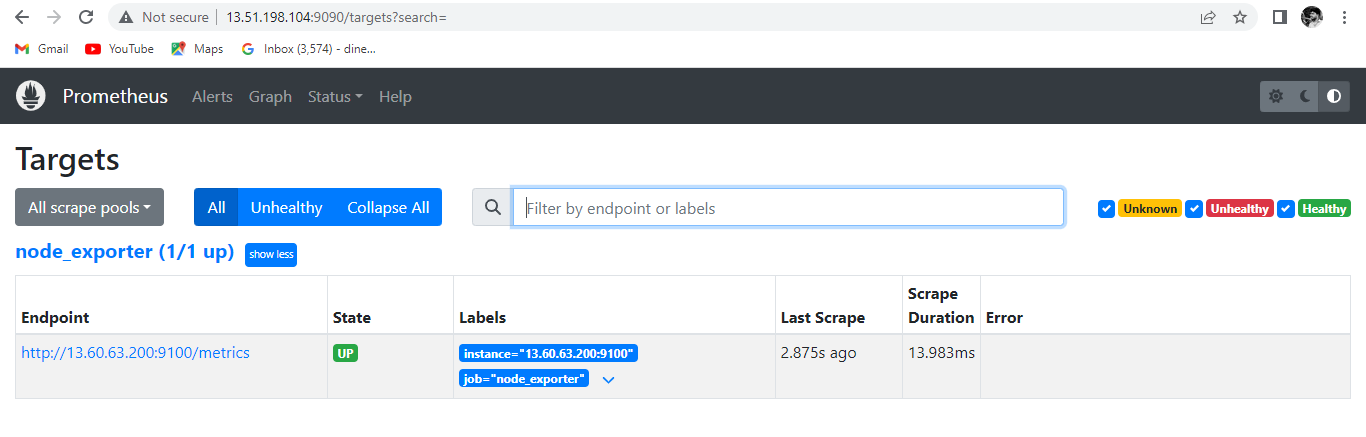
Now you can open the Prometheus using below url and can see the new targets added
http://<ip address>:9090/targets
Step 4: Install Grafana
Once Prometheus is installed successfully then we can install the Grafana and configure Prometheus as a datasource.
Grafana is an opensource tool which is used to provide the visualization of your metrics
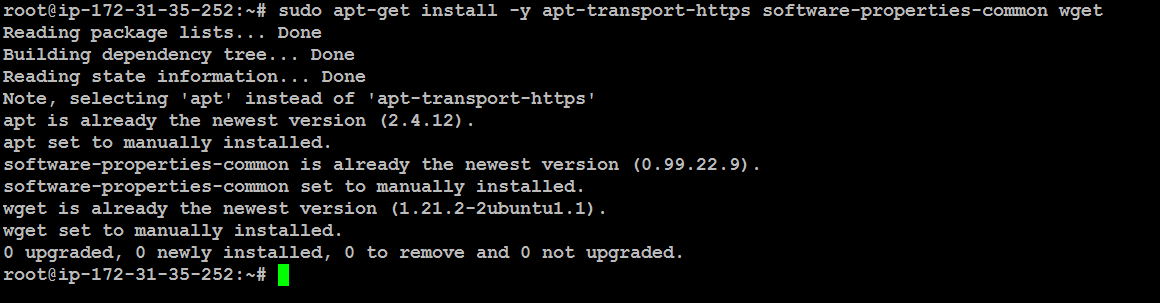
Install the prerequisite packages:
sudo apt-get install -y apt-transport-https software-properties-common wget
Import the GPG key:
sudo mkdir -p /etc/apt/keyrings/
wget -q -O - https://apt.grafana.com/gpg.key | gpg --dearmor | sudo tee /etc/apt/keyrings/grafana.gpg > /dev/null


To add a repository for stable releases, run the following command:
echo "deb [signed-by=/etc/apt/keyrings/grafana.gpg] https://apt.grafana.com stable main" | sudo tee -a /etc/apt/sources.list.d/grafana.list

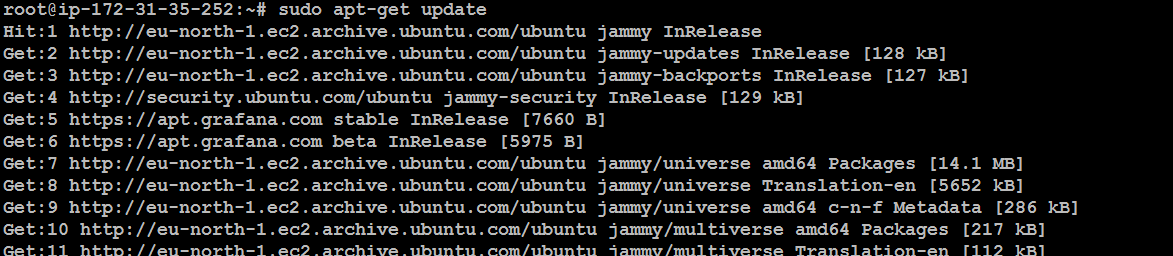
Update the list of available packages:
sudo apt-get update
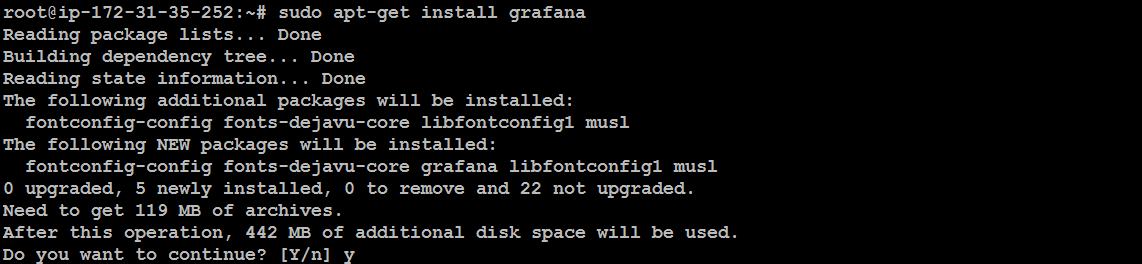
To install Grafana, run the following command:
sudo apt-get install grafana
To start the service, run the following commands:
sudo systemctl daemon-reload
sudo systemctl start grafana-server

Check the grafana server status
sudo systemctl status grafana-server
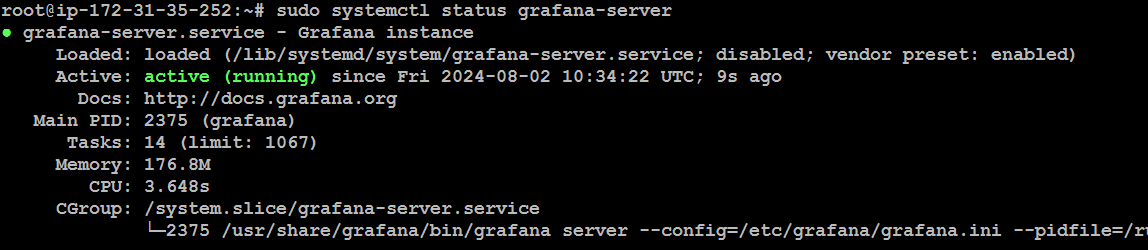
Now, we can access Grafana dashboard
http://<ip address>:3000
Login with default Username : admin & default password : admin
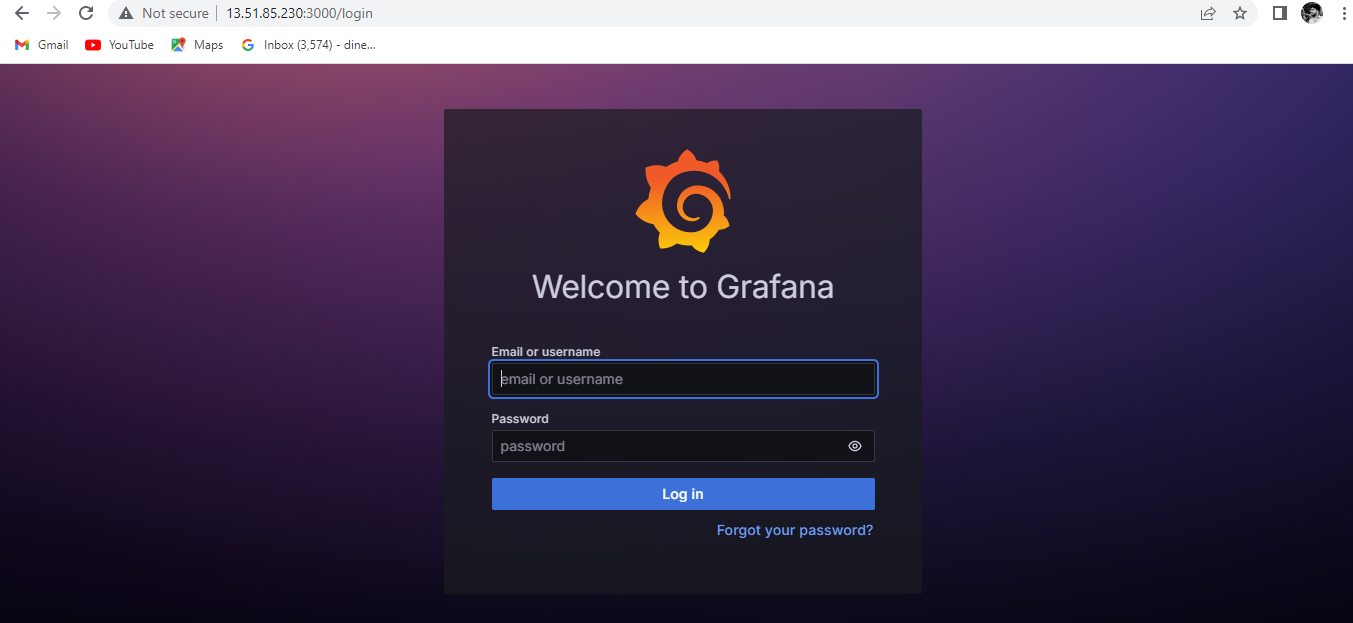
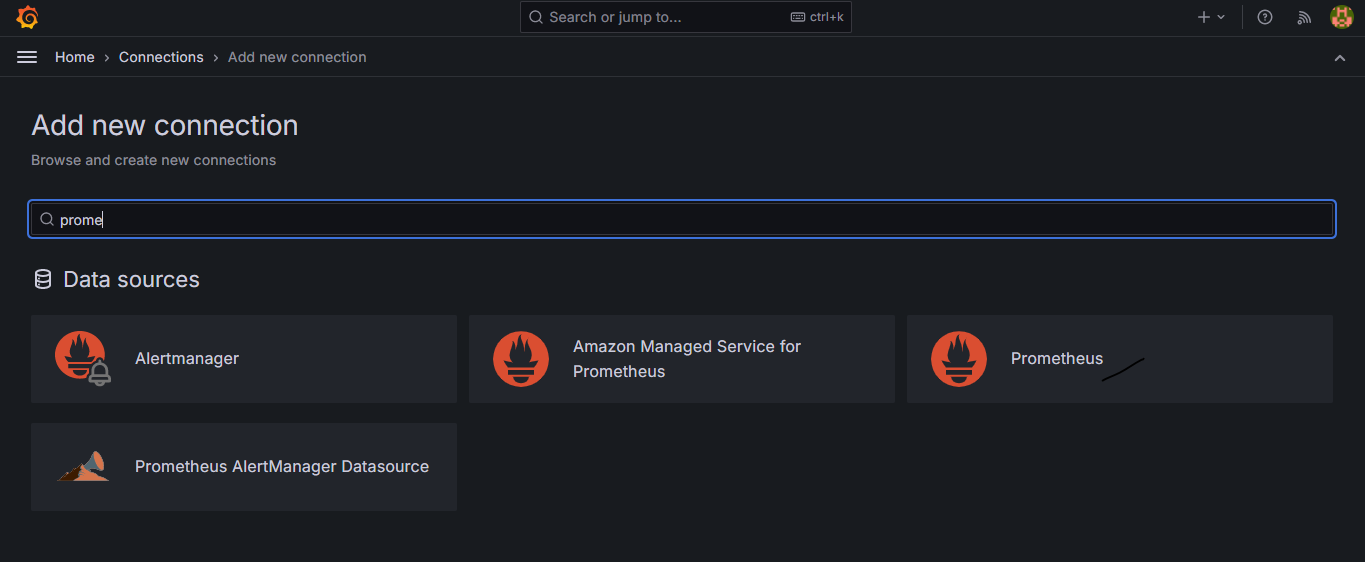
Click on "Connections", Click "Add new connection"
Search ( Prometheus ) & Click "Prometheus"
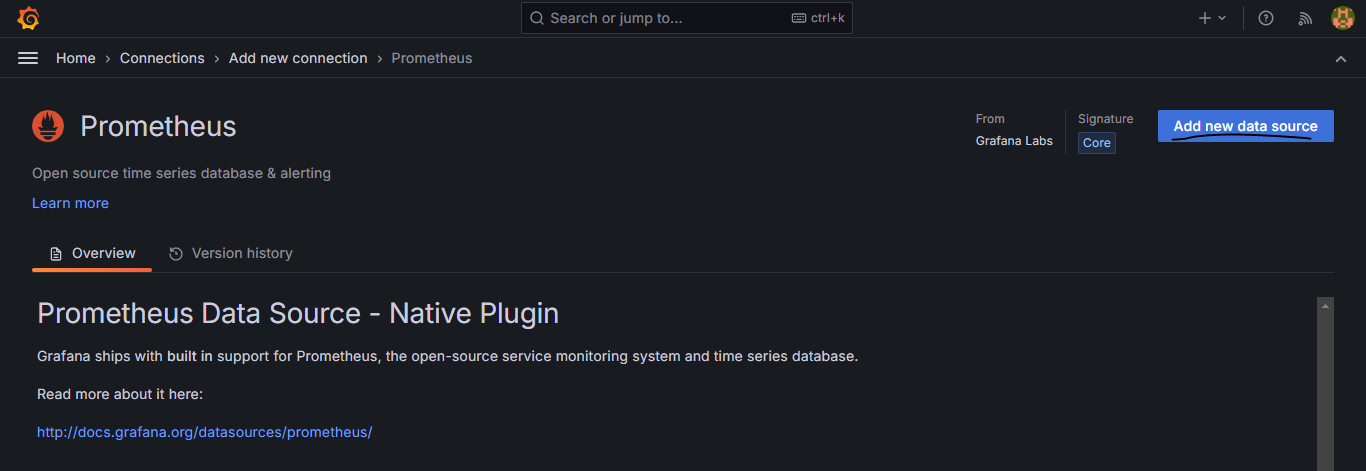
Click "Add new data source"
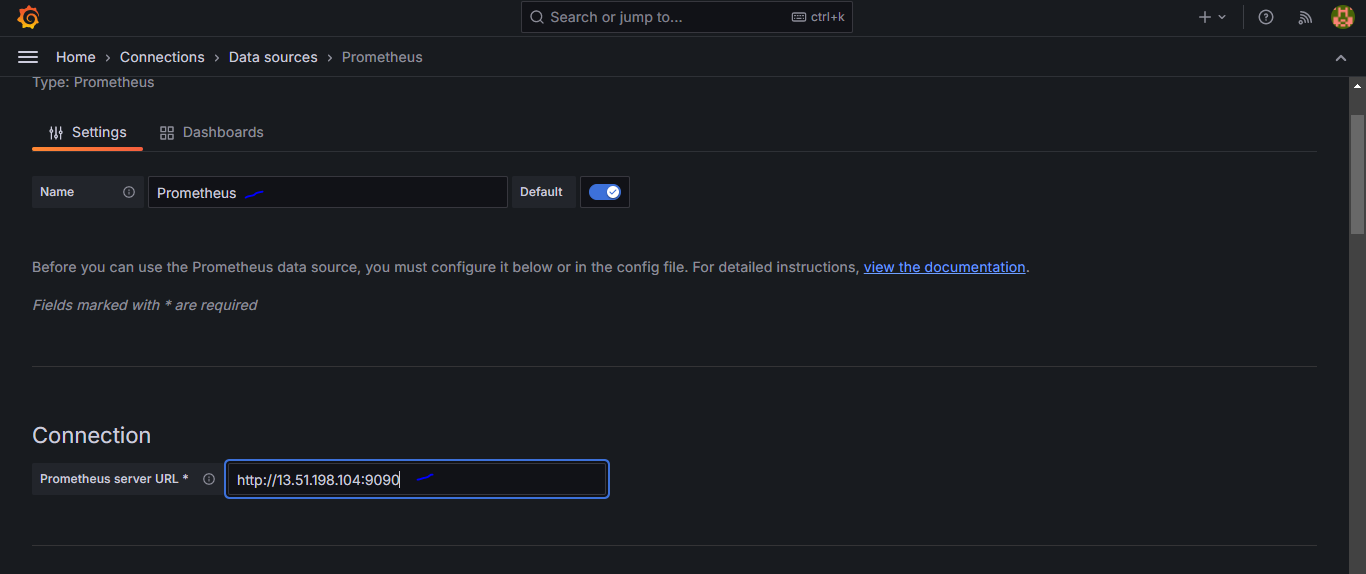
Enter the name "Prometheus"
Mention your Prometheus server ip "http://<ip address>:9090"
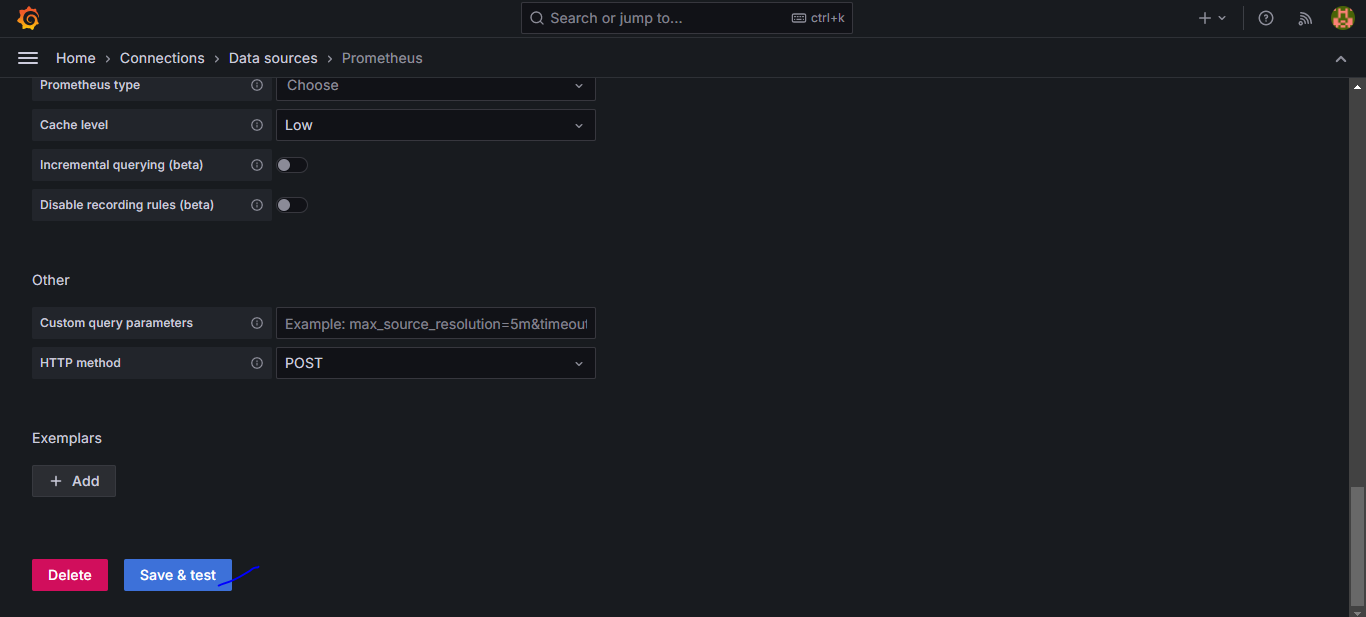
Scroll down, Click "Save & test"
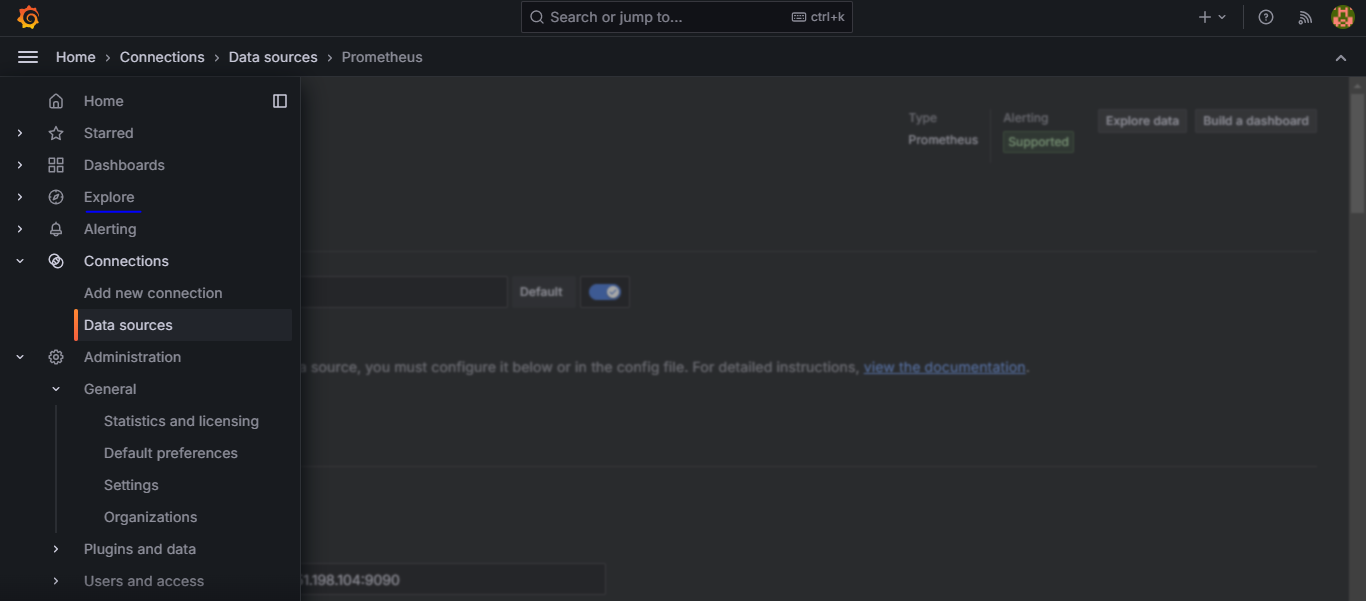
Click on "Data source"
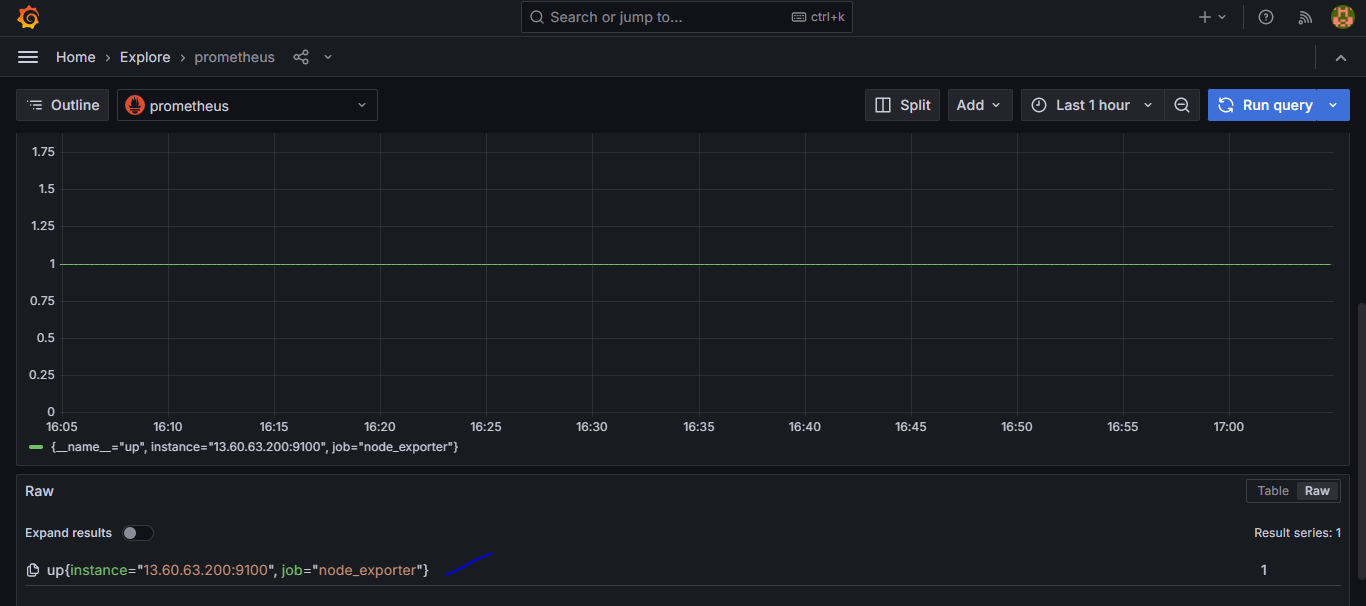
Choose "prometheus" and Enter "up" query in Metric Browser
Press the "Run query" option
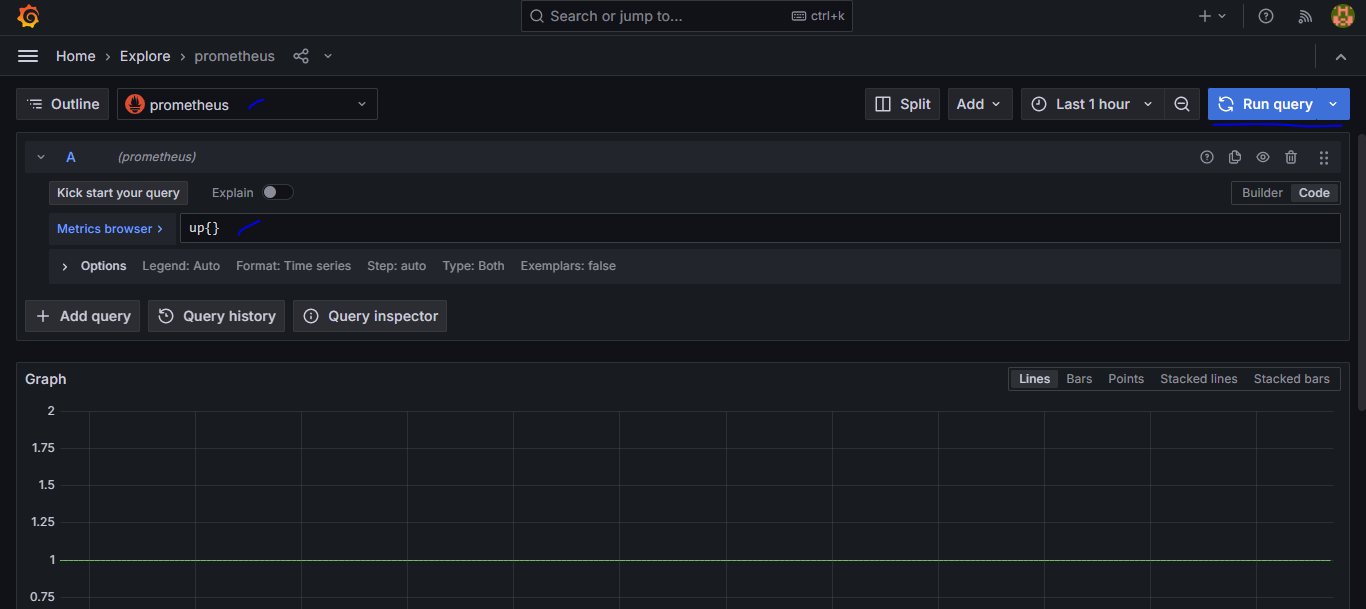
You will get dashboard
Grafana provides lot of dashboards which we can directly import in our Grafana instance and use it.
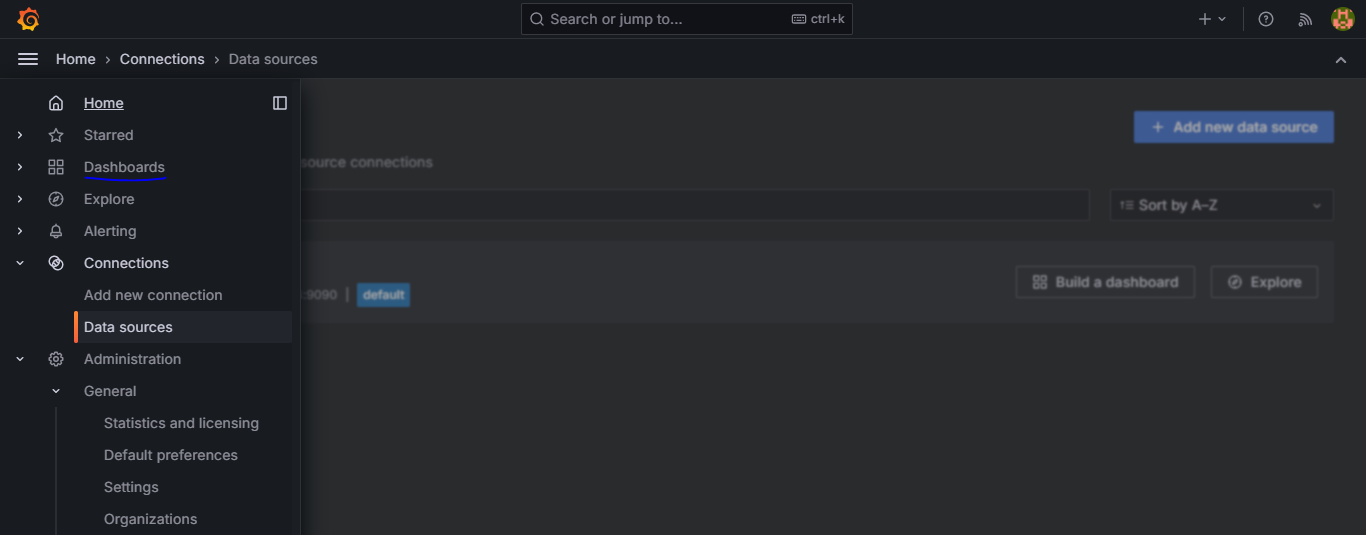
Import the dashboard
Click on Dashboards
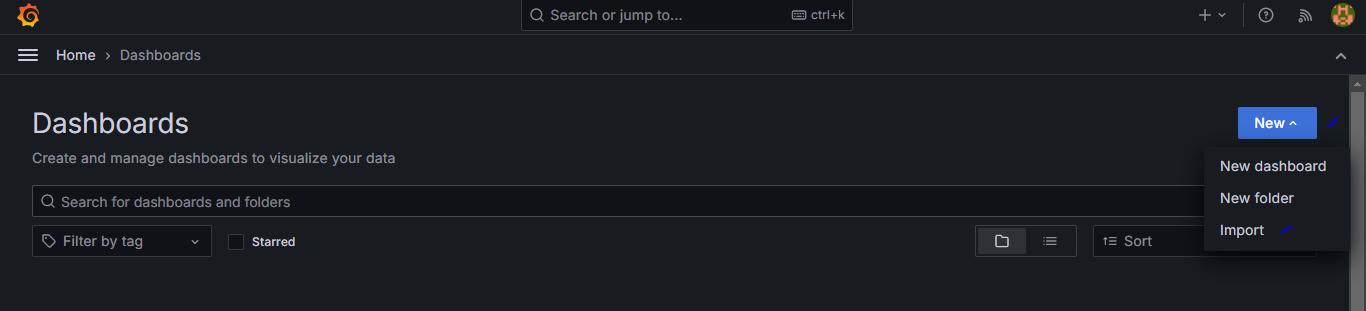
Click on new, Click Import
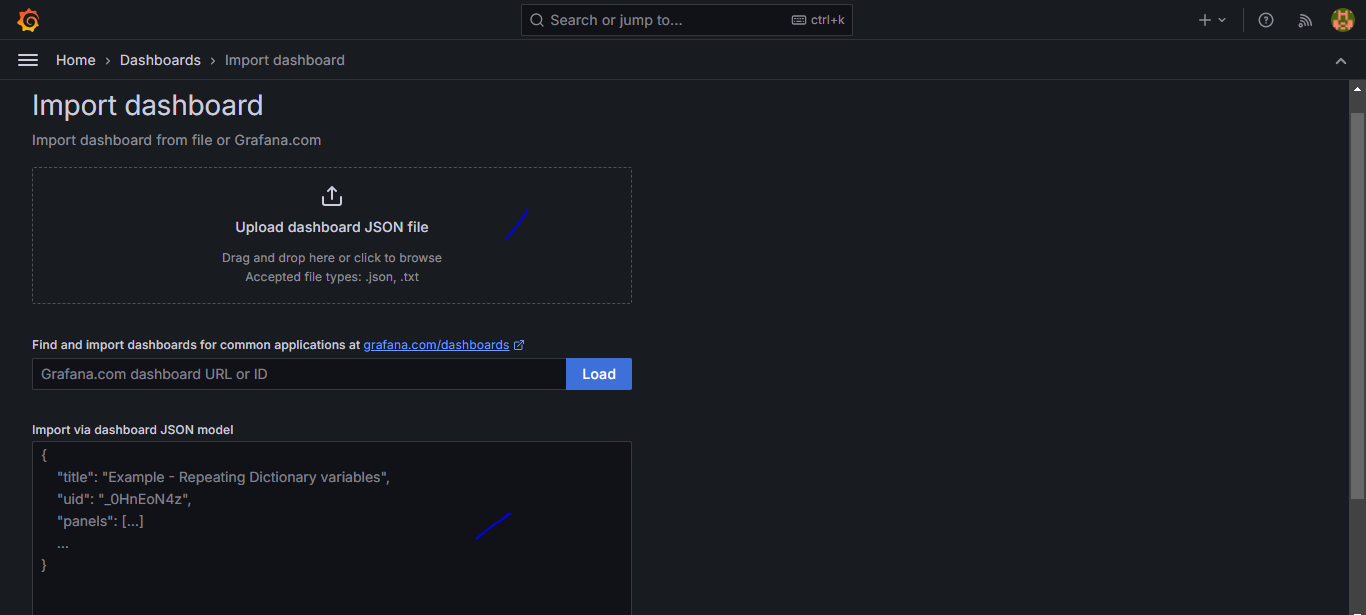
I have downloaded sample "Dashboard JSON file"
Click on "Upload dashboard JSON file"
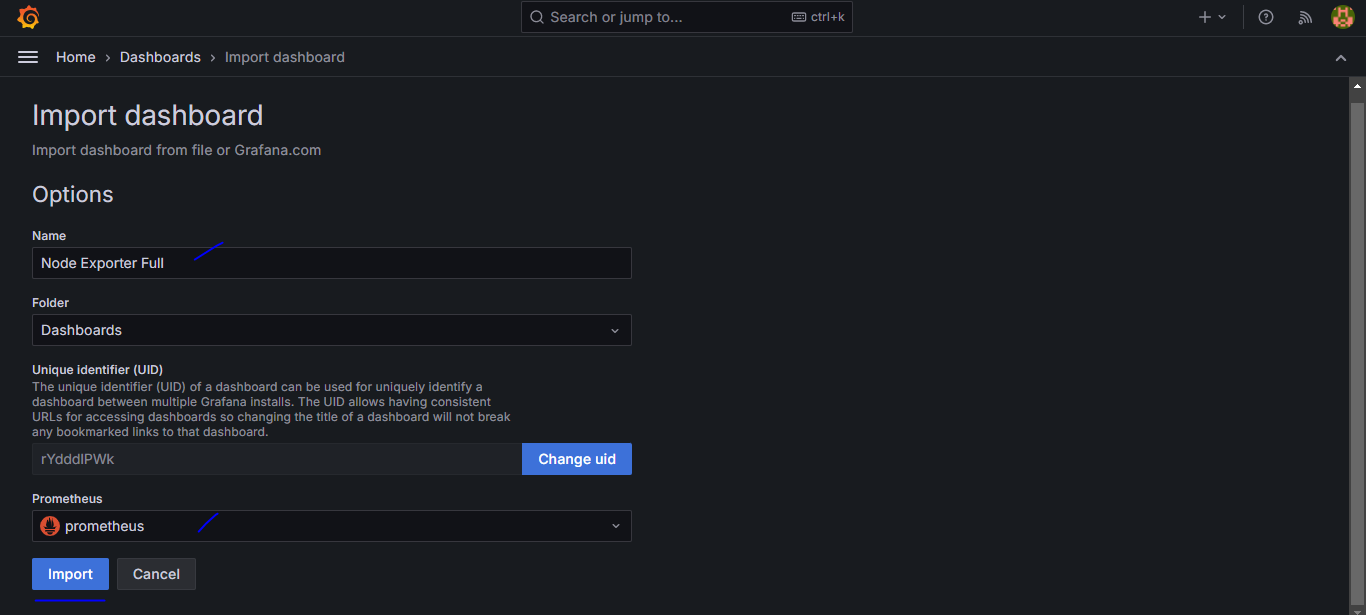
Set name for "Dashboard" and Select "Prometheus"
Click "Import"
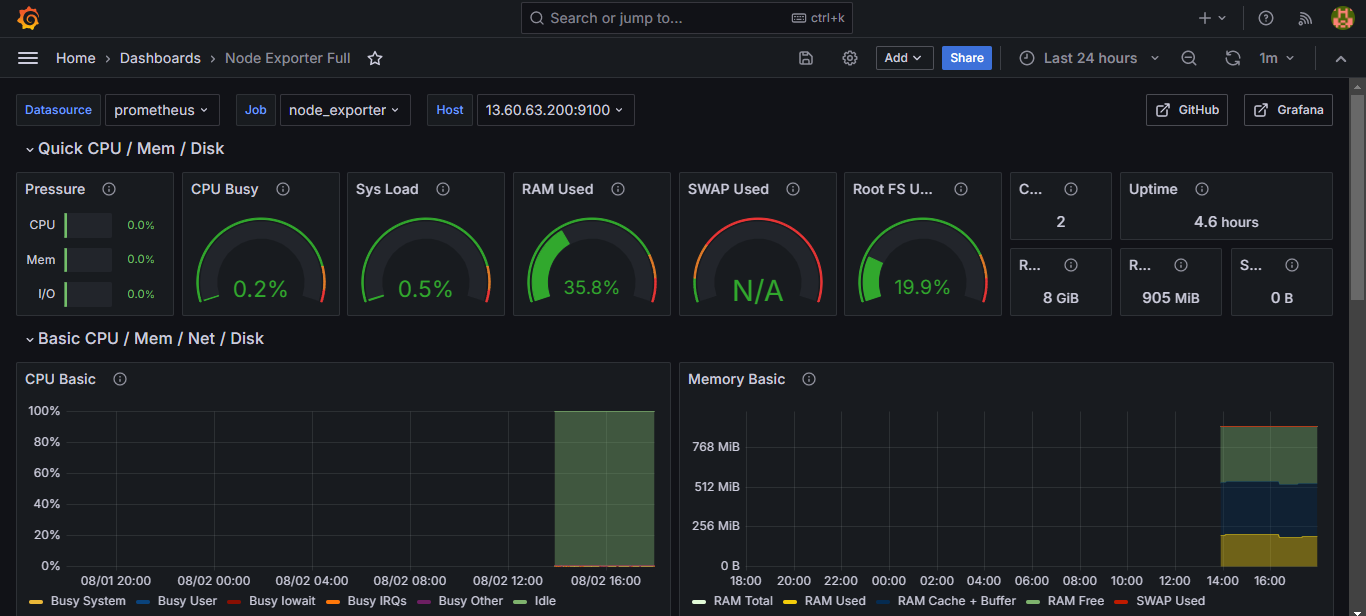
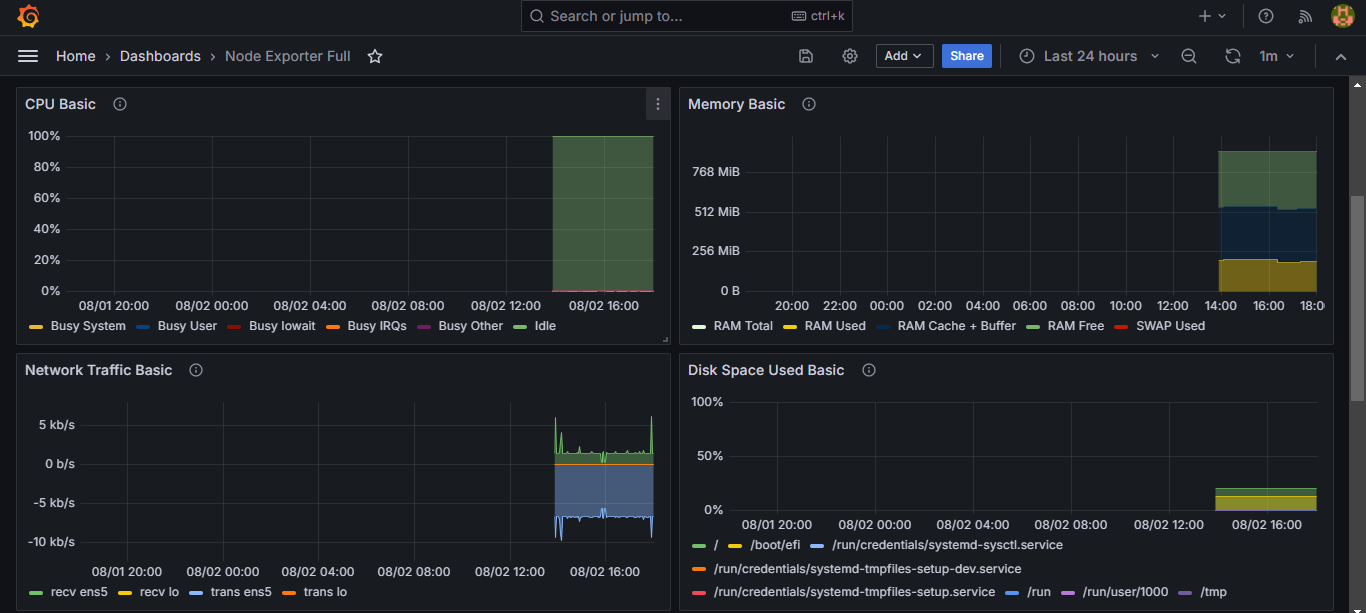
Now, we can see the EC2 instance metrics include CPU, Memory, Network, and more in the Grafana Dashboard.