Jenkins Role-based Authorization Strategy

Hi there! I'm Dinesh, a passionate Cloud and DevOps enthusiast. I love to dive into the latest new technologies and sharing my journey through blog.
Jenkins, by default, provides a basic level of access control through its built-in security options, but for more granular control, you’ll need to use the Role-based Authorization Strategy plugin. This plugin allows you to define roles with specific permissions and assign these roles to users or groups, offering a more detailed and customizable approach to security.
Agenda
Step 1 : Install the Role-Based Authorization Strategy Plugin
Step 2 : Create User
Step 3 : Configure Global roles & Item role
Step 4 : Assign Roles to Users or Groups
Step 5 : Ensure the assigned role with the newly created user.
Jenkins Role Based Strategy creation
Step 1 : Install the Role-Based Authorization Strategy Plugin
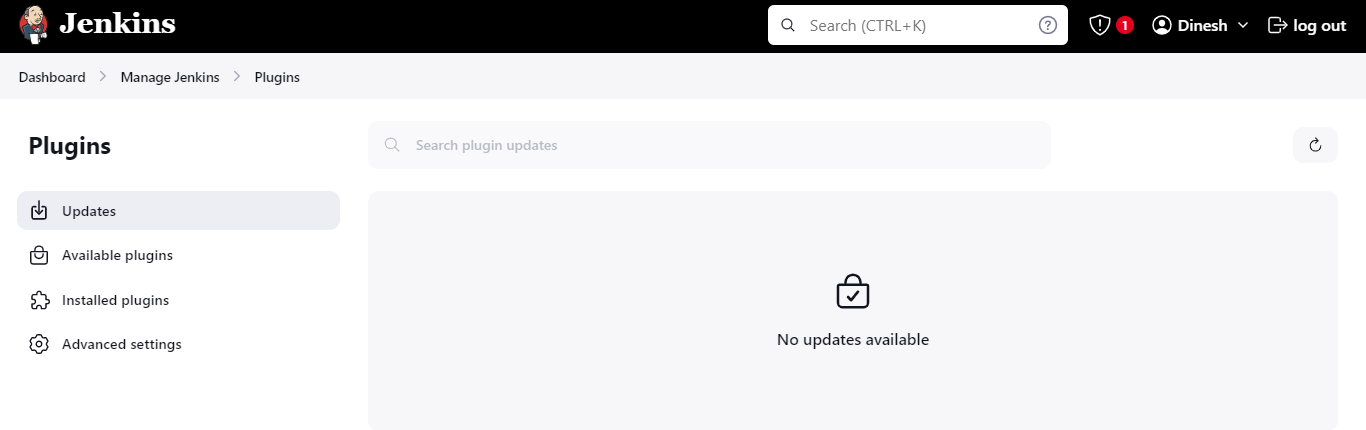
Go to Manage Jenkins > Plugins.
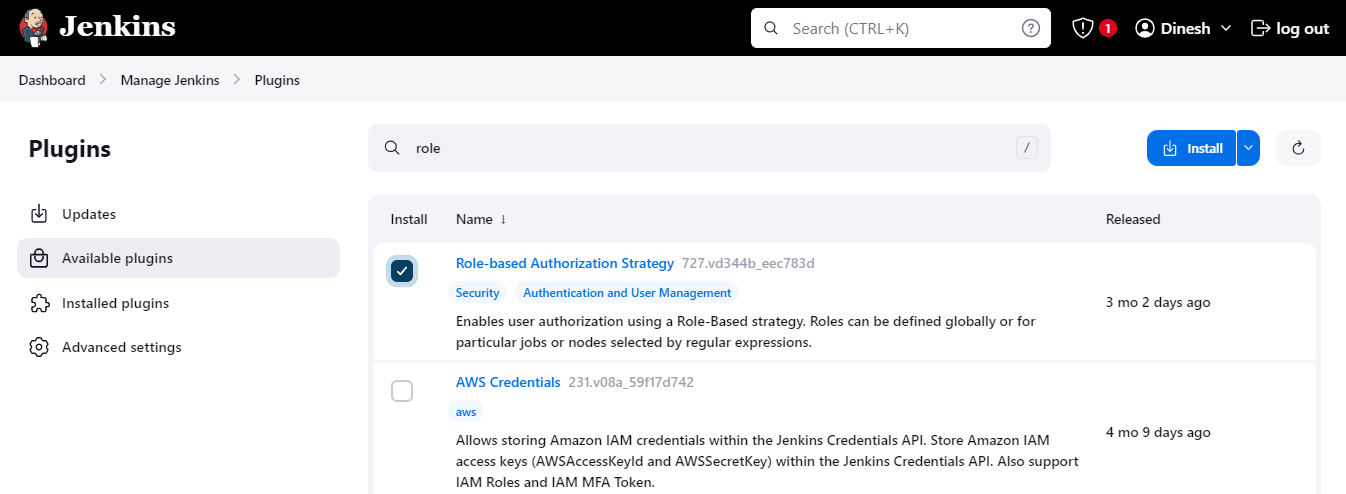
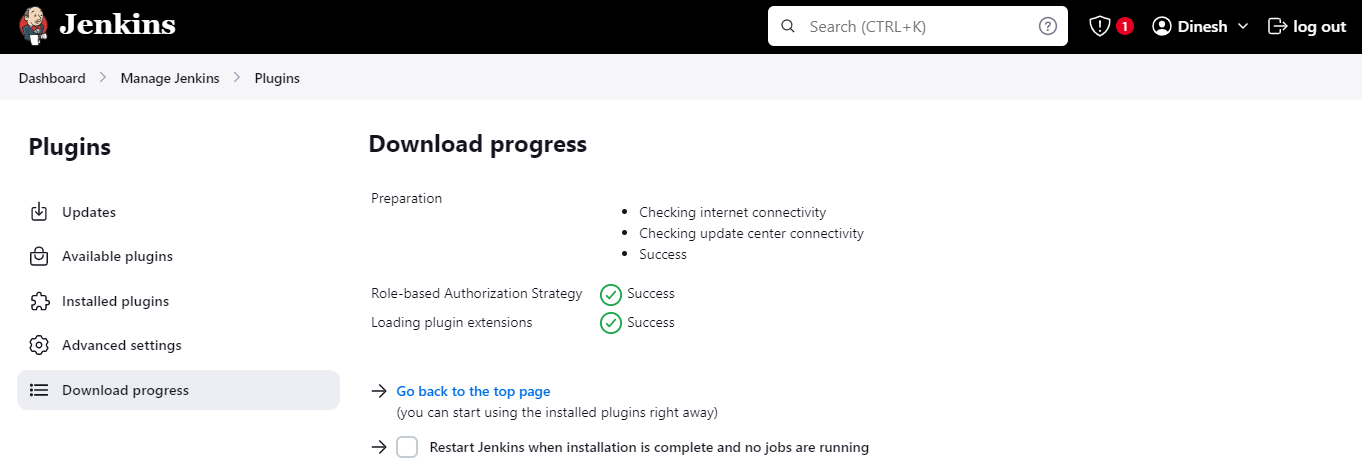
In the Available tab, search for Role-Based Authorization Strategy > Click Install
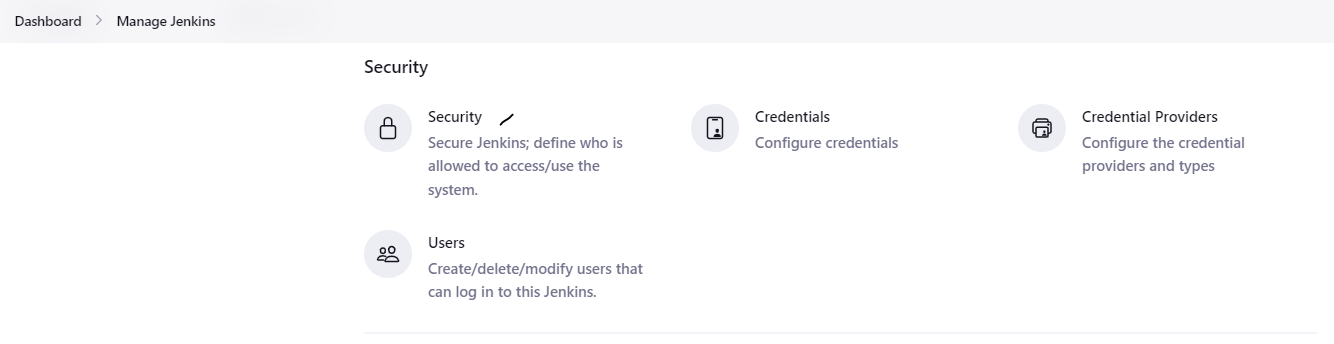
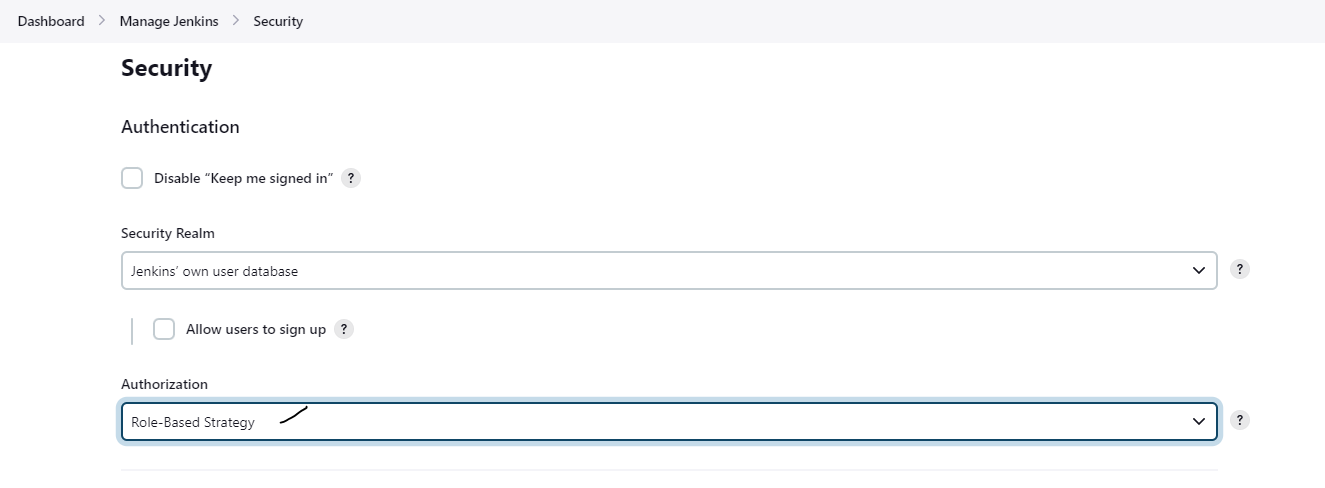
Go to Manage Jenkins > Security
Under Authorization > Select Role-Based Strategy > Click Save
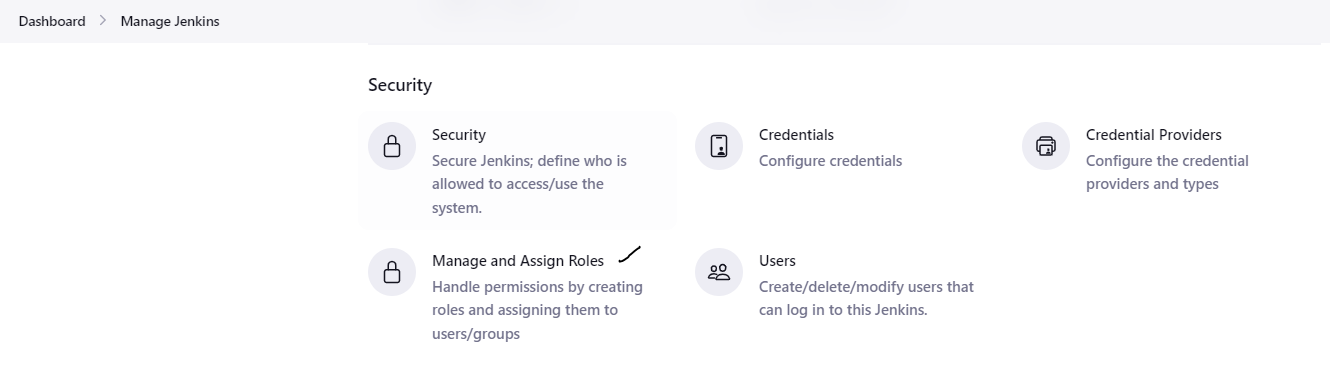
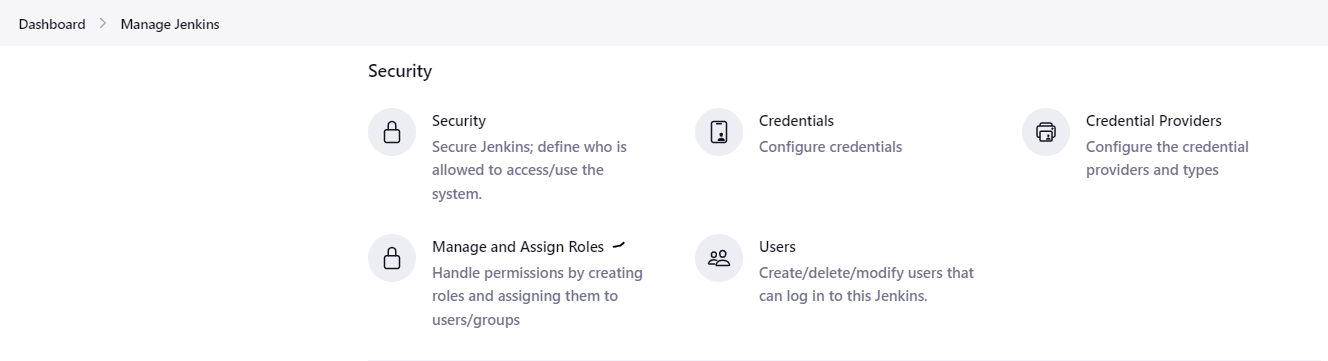
Now check Manage Jenkins page > Now the "Manage and Assign role" will show
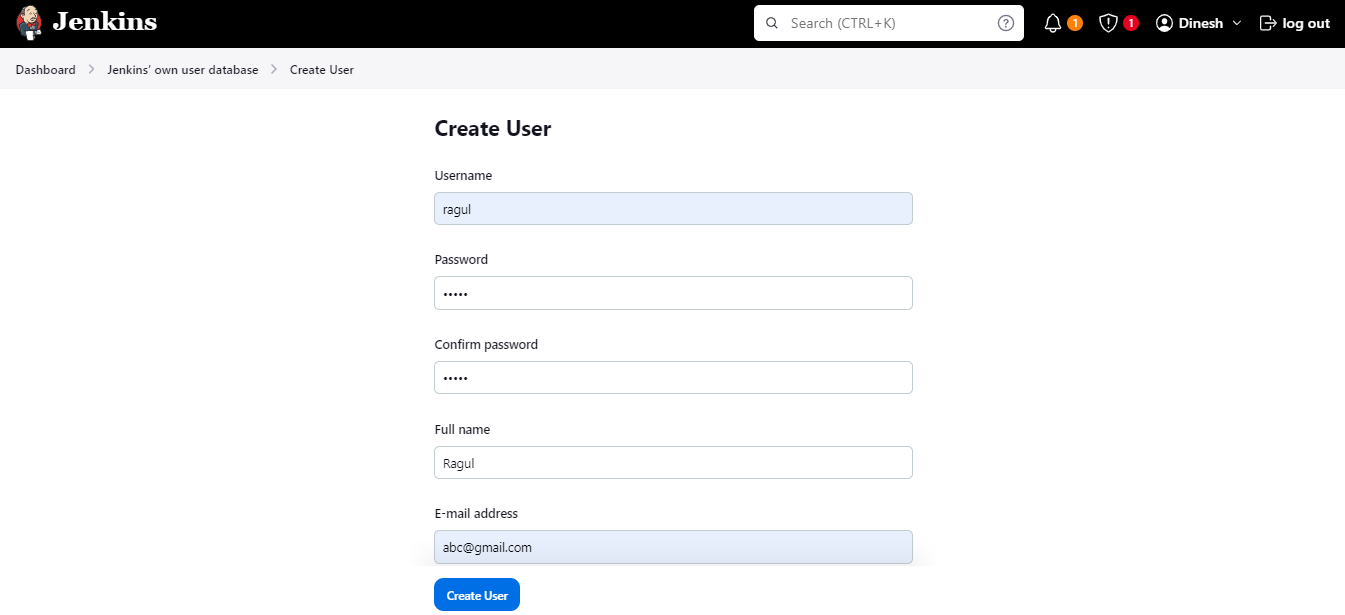
Step 2 : Create User
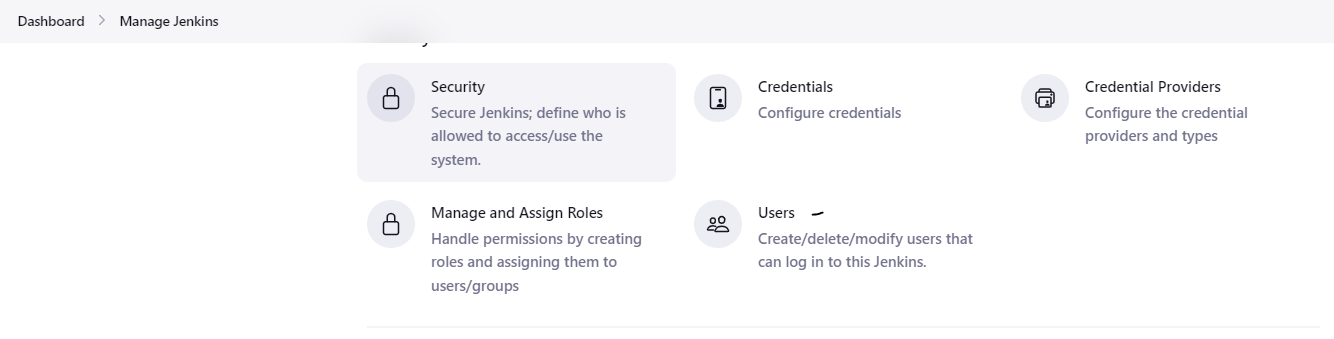
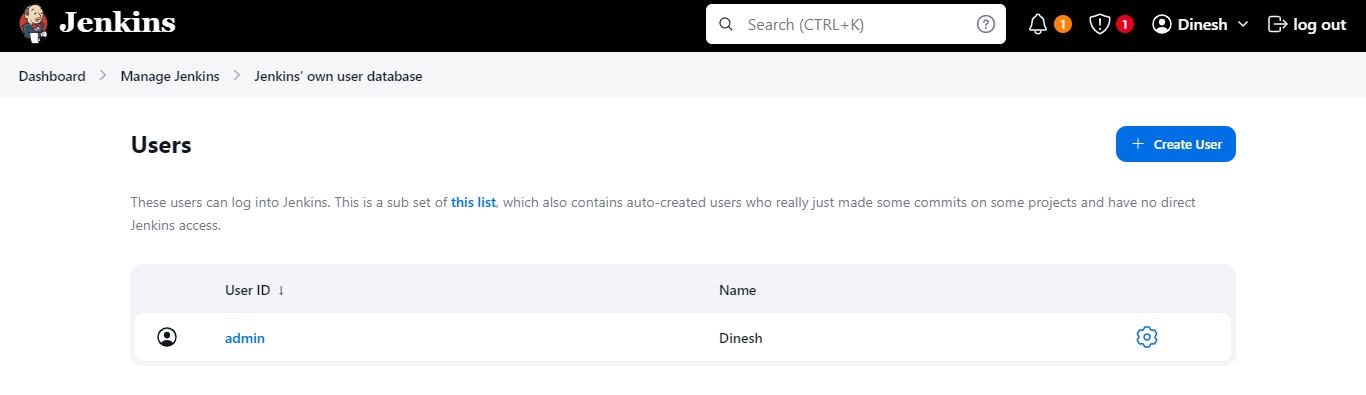
Go to Manage Jenkins > Users
Click on Create user
Enter Username, Password, Full Name and mail id > Click Create user
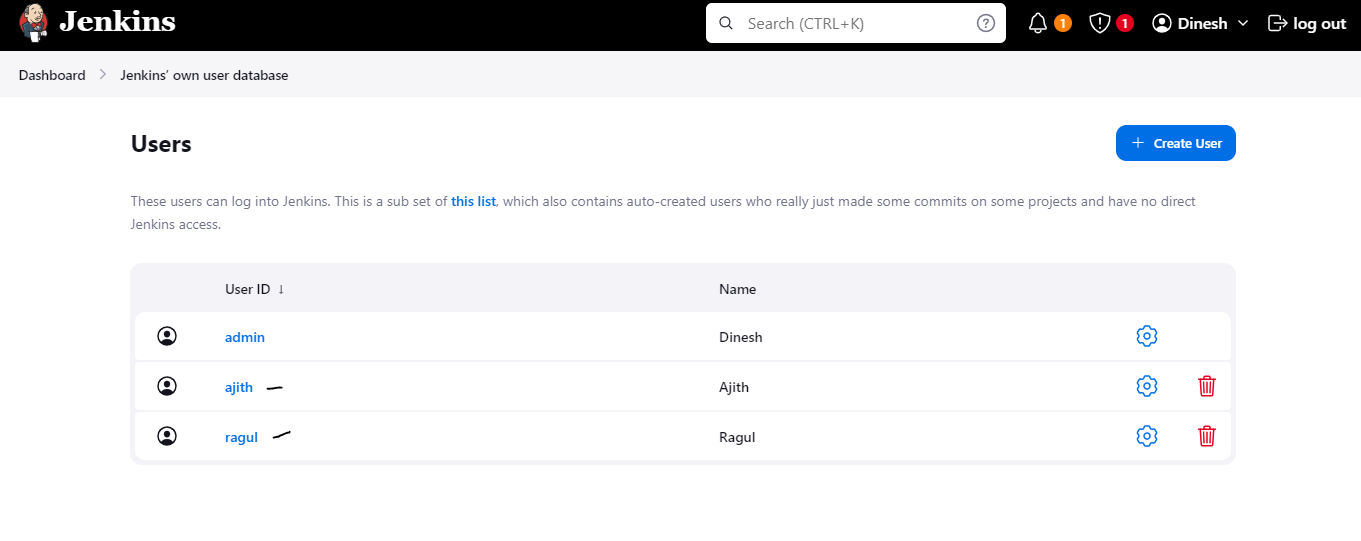
I have created two users
Step 3 : Configure Global roles & Item role
Go to Manage Jenkins > Manage and Assign Roles > Manage Roles.
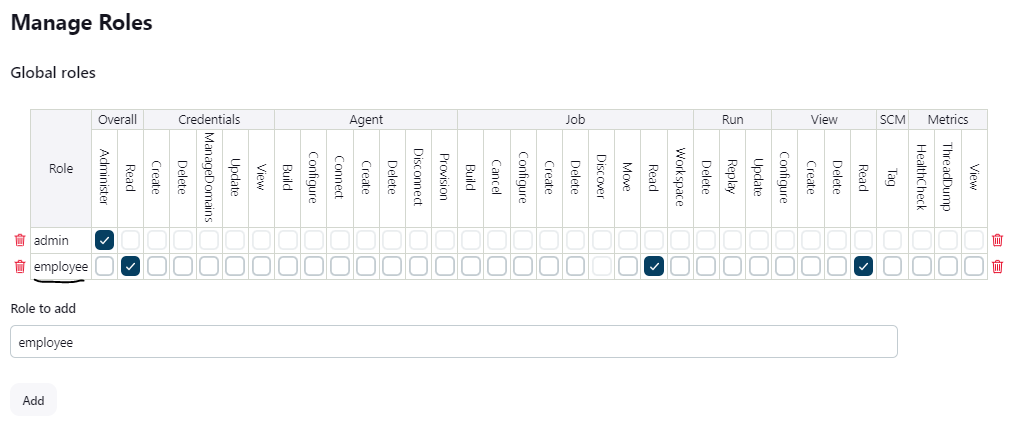
Global Roles: Permissions that apply to the entire Jenkins instance.
Global role creation:
Enter role > Click Add

I have created an "employee" role in global roles. I have given read access only.
Item Roles : Permissions specific to certain projects or jobs
Item role creation :
Role to add - Add role name > Pattern - dev.* > Click - Add
In pattern [dev.*] - means, Matches any character "dev"
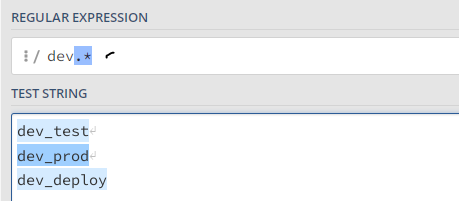
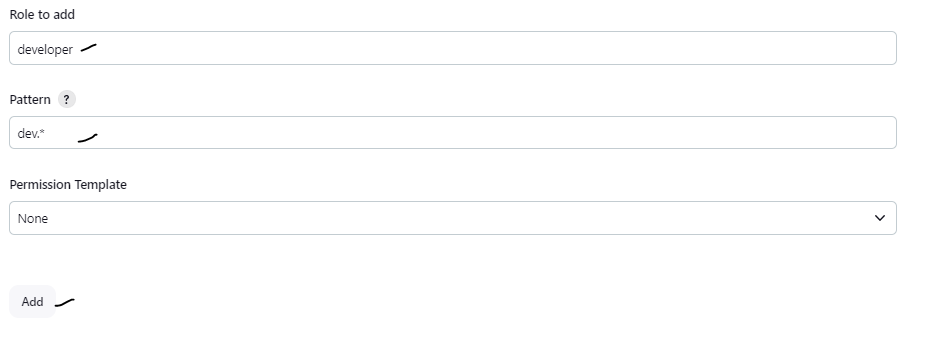
I have created an developer & tester role in item roles. I have given full access to both
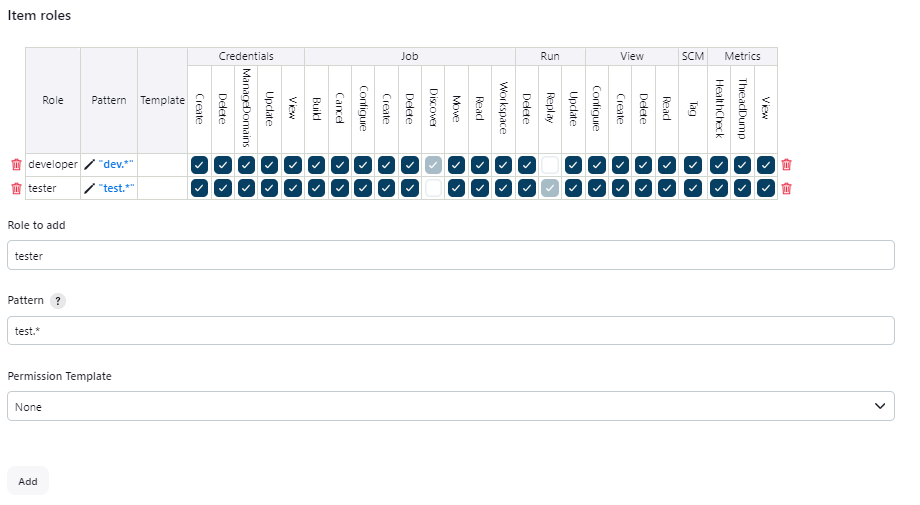
Step 4 : Assign Roles to Users or Groups
Go to Manage Jenkins > Manage and Assign Roles > Assign Roles
I have added two users in Global Roles & given access to employee role
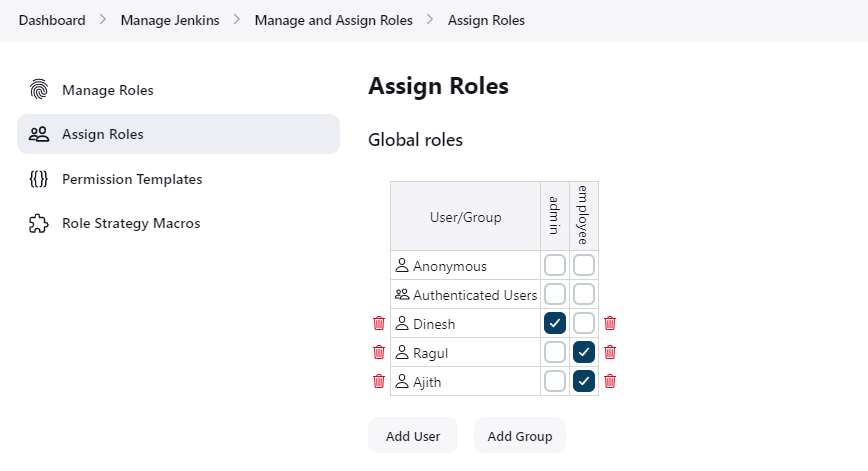
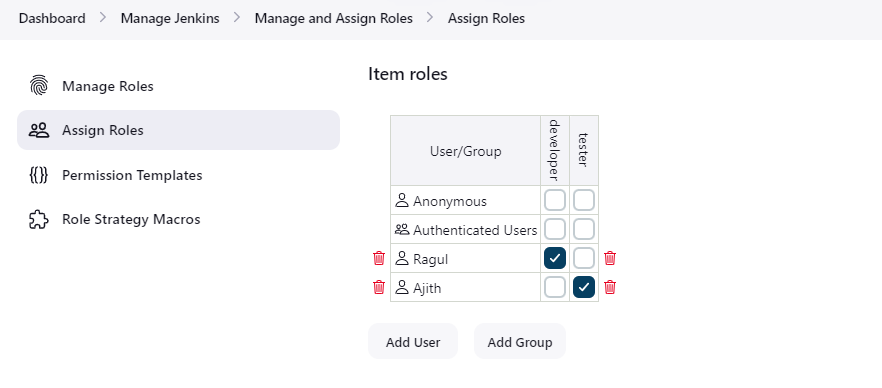
I have given access to the developer role for the "Ragul" user in Item roles. It means "Ragul" users can access only "dev" jobs.
Same like, I have given access to the tester role for the "Ajith" user in Item roles. Ajith users can access only "test" jobs.
Step 5 : Ensure the assigned role with the newly created user.
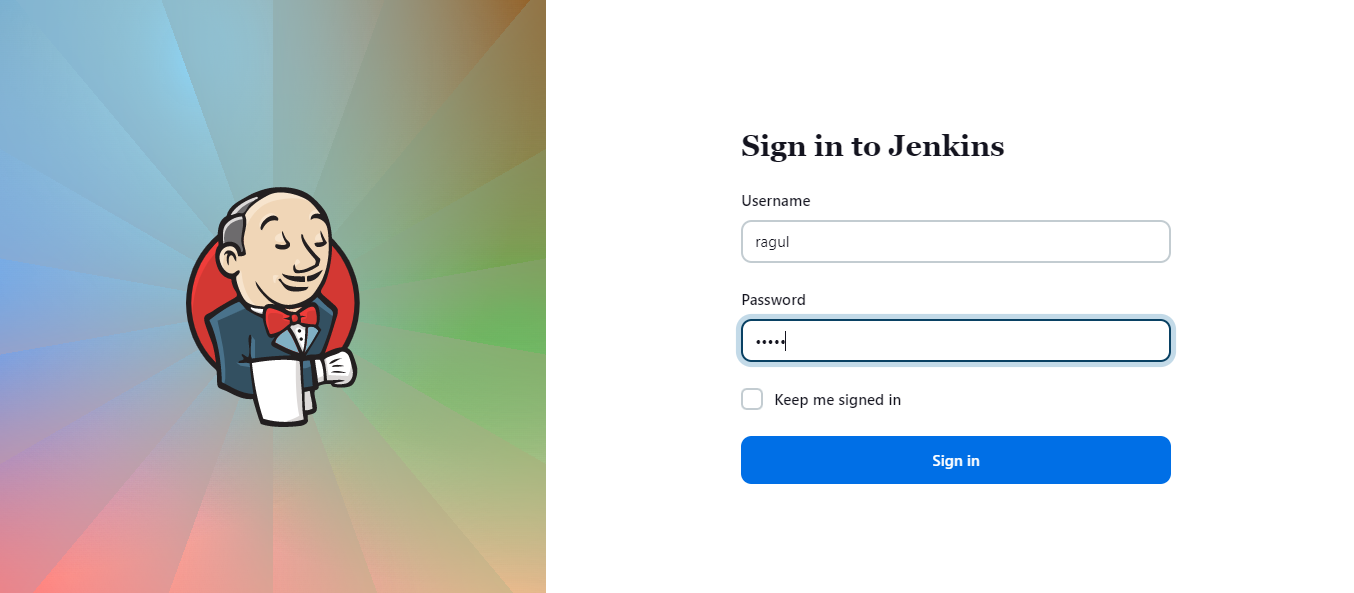
Now, login through "ragul" user.
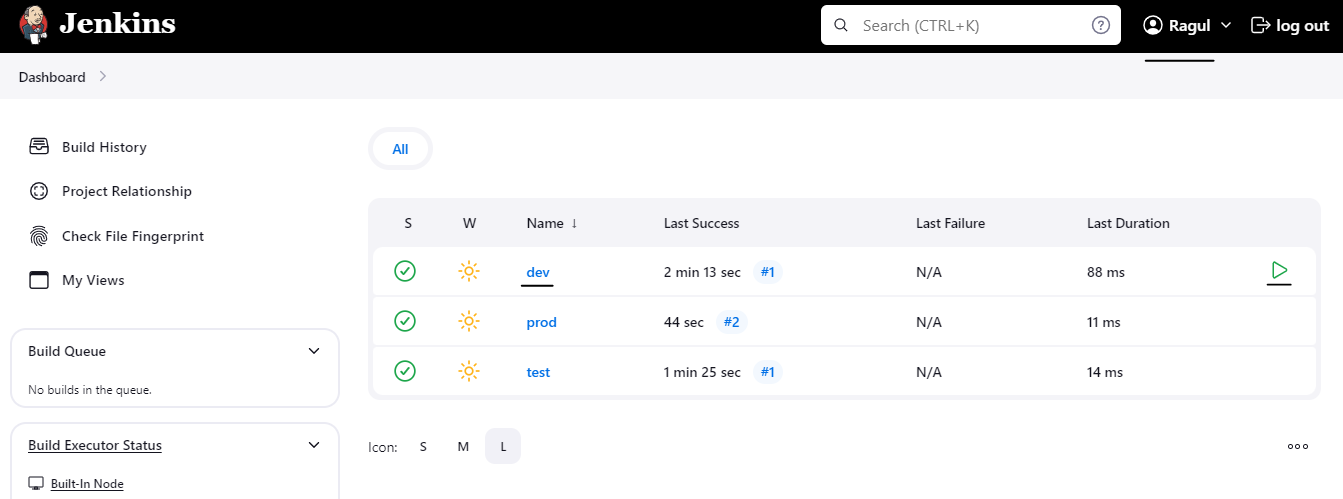
Ragul users can only run the task called "dev"
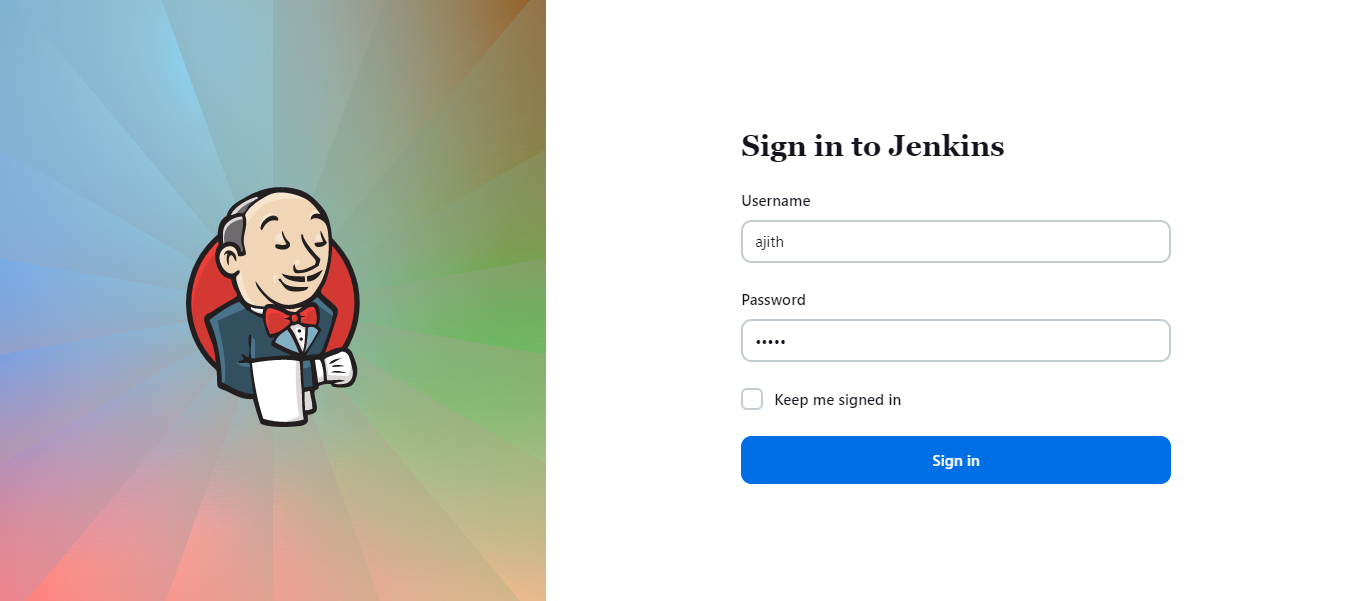
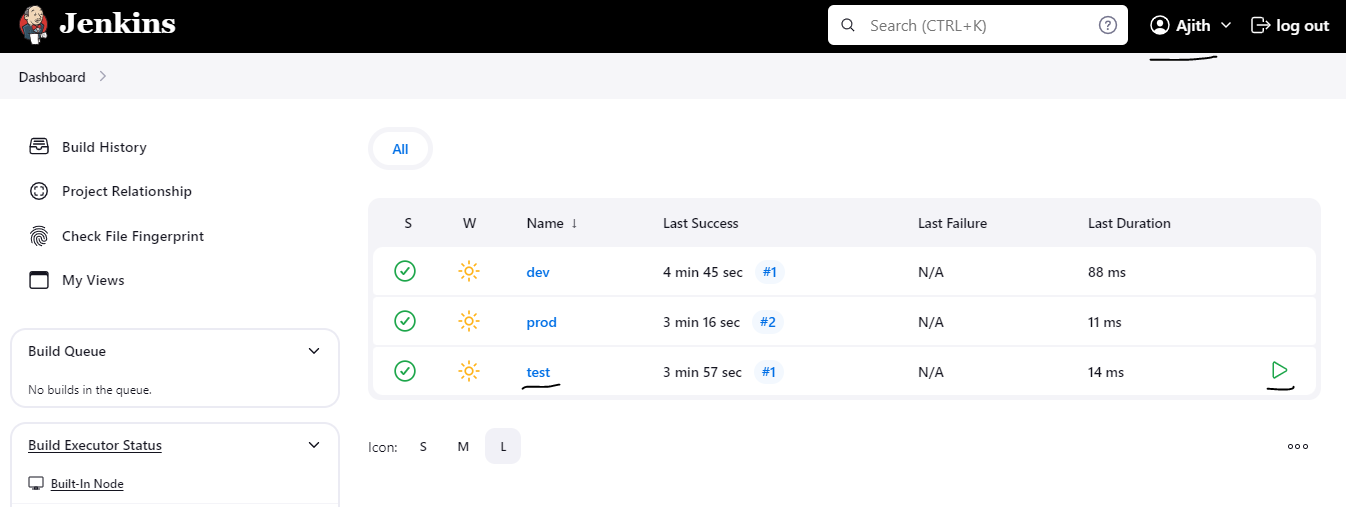
Now, login through "ajith" user.
Ajith users can only run the task called "test"
No, we have successfully configured "Role-based Authorization Strategy"