Creating a Kubernetes Cluster on AWS using kops
Hi there! I'm Dinesh, a passionate Cloud and DevOps enthusiast. I love to dive into the latest new technologies and sharing my journey through blog.
Creating a Kubernetes cluster on AWS using kops (Kubernetes Operations) is a popular method due to its simplicity and powerful feature set. Below is a step-by-step guide to help you set up a Kubernetes cluster on AWS using kops.
Step 1 : Create an EC2 Instance for Kops and Kubectl
Creating an EC2 instance that will serve as your management machine for kops and kubectl.

Step 2: Switch to the Root User
sudo su - root

Step 3: Install Kops on Your Local Machine
Download and install the latest version of kops:
curl -Lo kops https://github.com/kubernetes/kops/releases/download/$(curl -s https://api.github.com/repos/kubernetes/kops/releases/latest | grep tag_name | cut -d '"' -f 4)/kops-linux-amd64

chmod +x kops
sudo mv kops /usr/local/bin/kops

kops

Step 4: Install Kubectl on Your Local Machine
Download and install kubectl, the Kubernetes command-line tool:
curl -Lo kubectl https://storage.googleapis.com/kubernetes-release/release/v1.27.0/bin/linux/amd64/kubectl

chmod +x ./kubectl
sudo mv ./kubectl /usr/local/bin/

kubectl

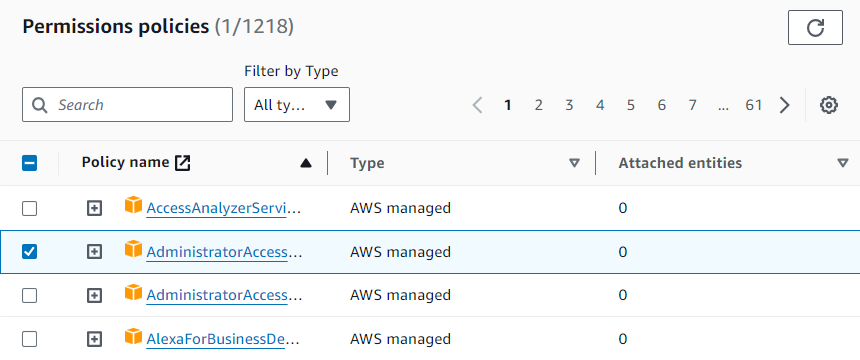
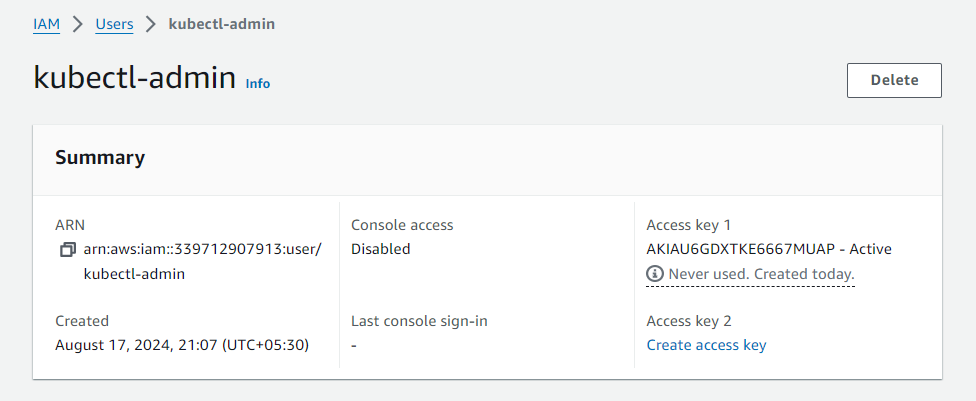
Step 5: Create an IAM User with Admin Access
You'll need an IAM user with the necessary permissions to manage the Kubernetes cluster.
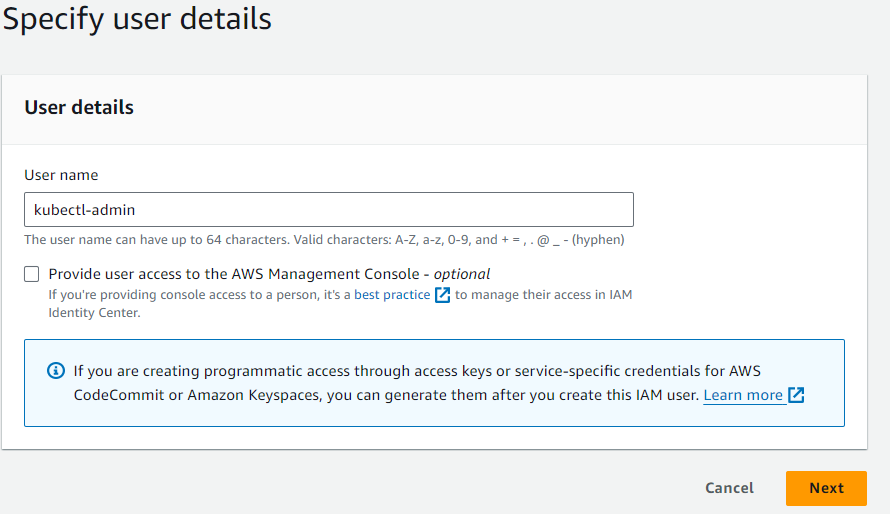
Attach the necessary admin policies:
Step 6 : Configure AWS CLI on your Linux machine
Update your system package
sudo apt update

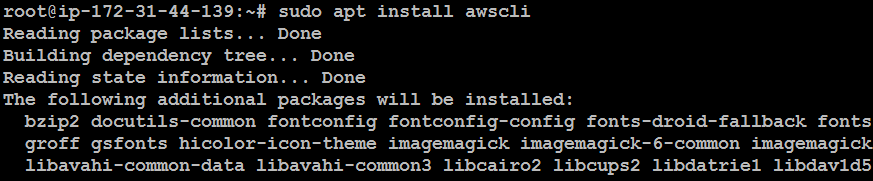
Install the AWS CLI:
sudo apt install awscli
Configure the AWS CLI with your credentials:
aws configure
You'll need to provide:
AWS Access Key ID
AWS Secret Access Key
Default region name
Default output format (e.g., JSON)

Verify your configuration:
aws s3 ls

Step 7: Export Environment Variables
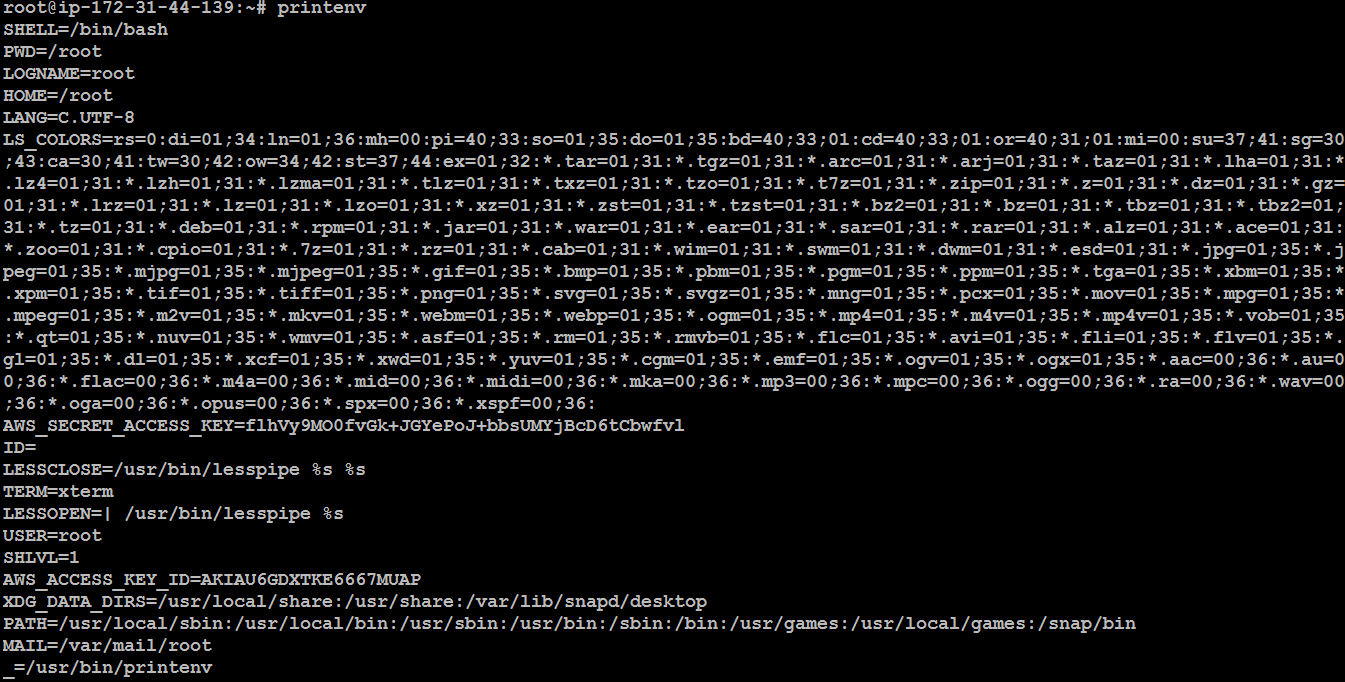
Export your AWS access keys as environment variables:
export AWS_ACCESS_KEY_ID=$(aws configure get aws_access_key_id)
export AWS_SECRET_ACCESS_KEY=$(aws configure get aws_secret_access_key)

printenv
Step 8 : Create an S3 Bucket for State Storage
Kops requires an S3 bucket to store the cluster's state files.
Create an S3 bucket in your AWS account to hold this data:
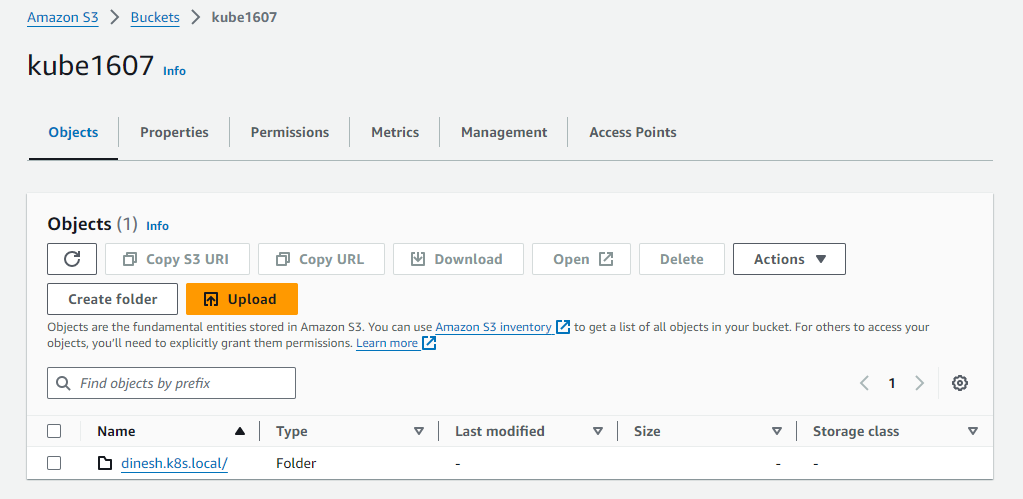
Step 9: Set Environment Variables for the S3 Bucket and Cluster Name
Set the environment variables for your S3 bucket and cluster name:
export KOPS_STATE_STORE=s3://bucket name
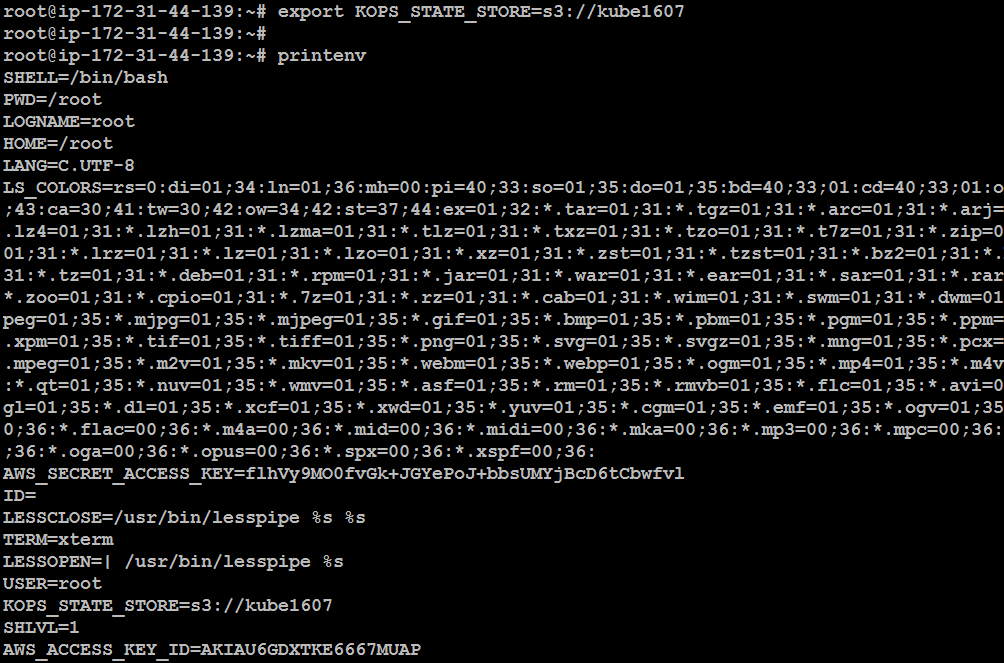
export NAME=<cluster_name>.k8s.local
export NAME=dinesh.k8s.local

Step 10: Create the Kubernetes Cluster
Create your Kubernetes cluster in the desired AWS region:
kops create cluster --zones us-east-2a ${NAME}
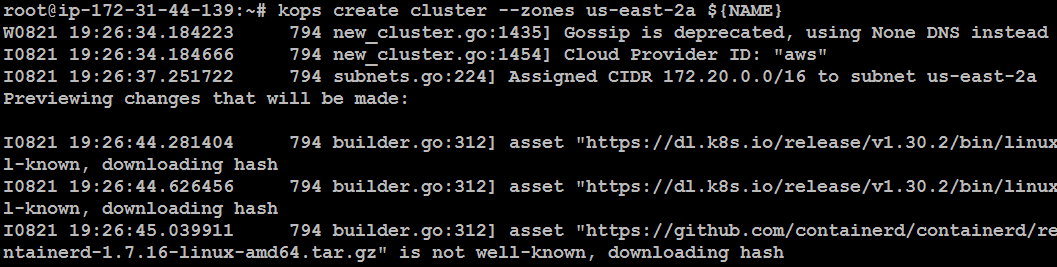
Suggestions:
 * list clusters with: kops get cluster
 * edit this cluster with: kops edit cluster dinesh.k8s.local
 * edit your node instance group: kops edit ig --name=dinesh.k8s.local nodes-us-east-2a
 * edit your control-plane instance group: kops edit ig --name=dinesh.k8s.local control-plane-us-east-2a

Finally configure your cluster with: kops update cluster --name dinesh.k8s.local --yes --admin
Edit the Instance Group if needed: How many instance we need
kops edit ig --name=dinesh.k8s.local nodes-us-east-2a
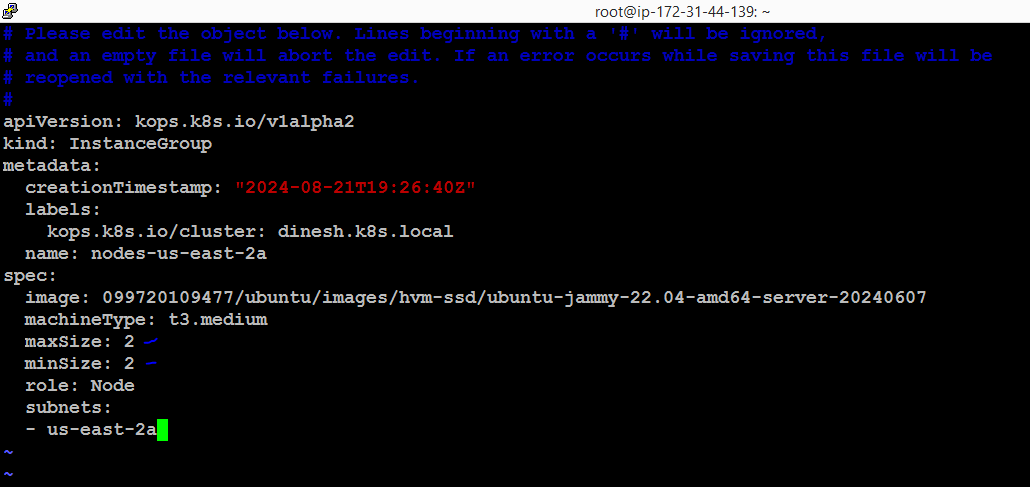
Step 11 : Update & Validate the Cluster
Finally, configure your cluster:
kops update cluster --name dinesh.k8s.local --yes --admin
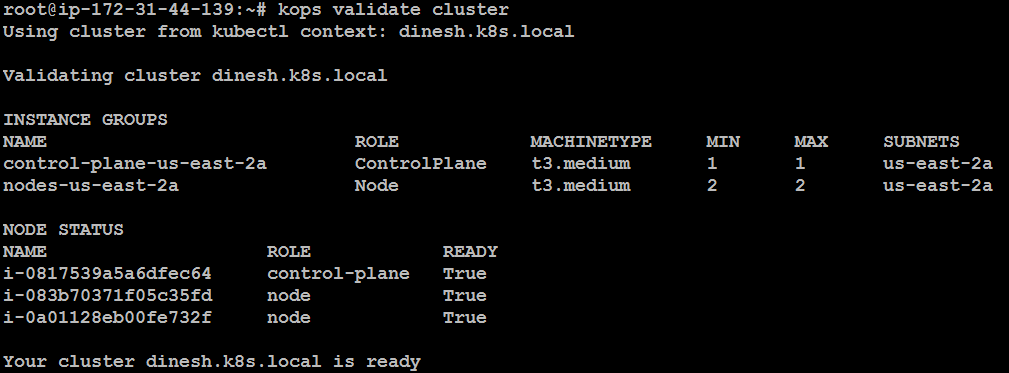
This process may take some time. After it's complete, validate the cluster:
kops validate cluster
Your cluster should now be ready with 1 control plane and 2 worker nodes.
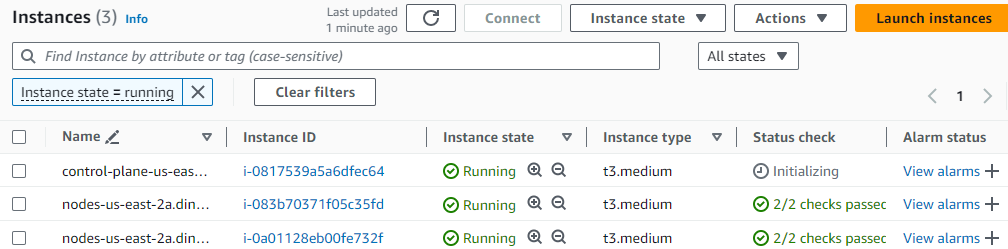
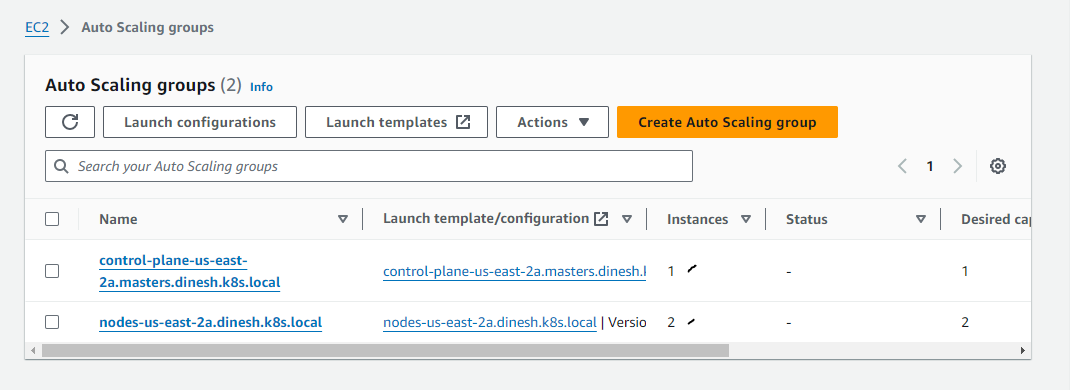
Check the cluster details:
kops get cluster

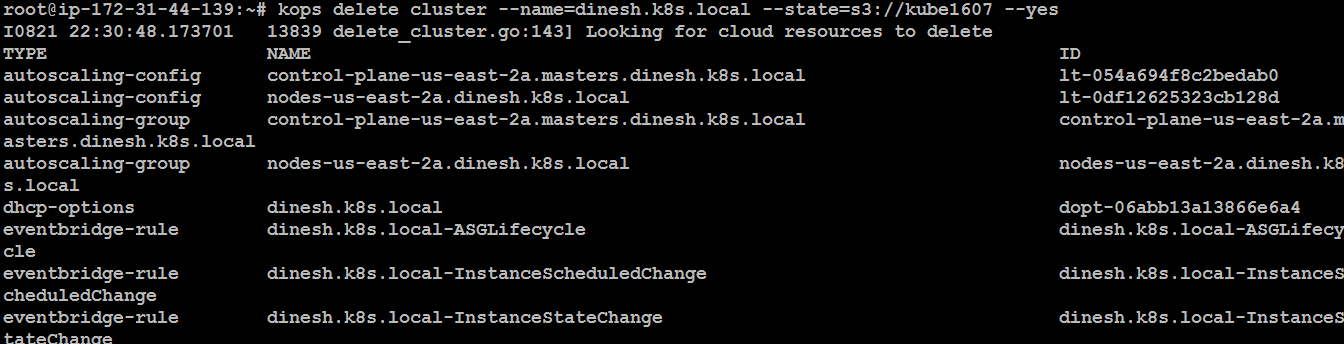
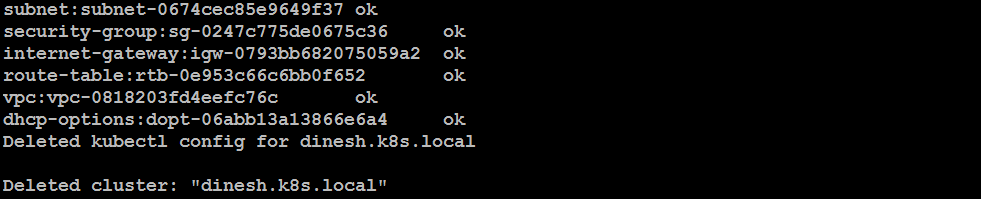
Step 12: Delete the Kubernetes Cluster
If you need to delete the cluster:
kops delete cluster --name=cluster name.k8s.local --state=s3://bucketname --yes