Creating a Docker image using Dockerfile and Launch Container
Hi there! I'm Dinesh, a passionate Cloud and DevOps enthusiast. I love to dive into the latest new technologies and sharing my journey through blog.
Create directory for Dockerfile

Create Docker file, Name should be Dockerfile
#Start with an #Ubuntu base image
FROM ubuntu

#Add metadata with a Name Label
LABEL Name="Dinesh"

#Update packages and Install Apache2
RUN apt-get update && apt-get install apache2 -y
vi Dockerfile


Build the Docker Image :
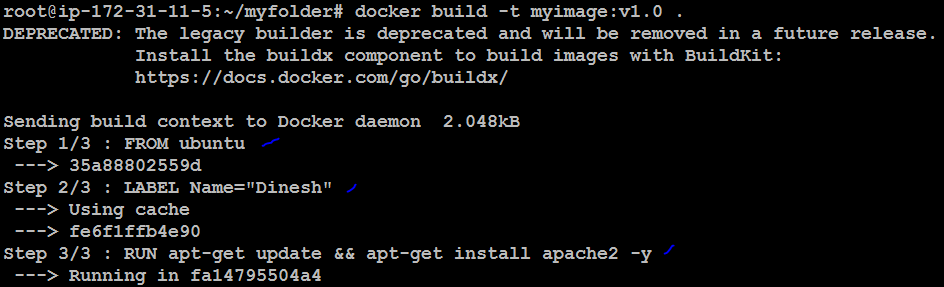
docker build -t myimage:v1.0 .
docker build: Invokes Docker's build process.-t myimage:v1.0: Tags the resulting image with the namemyimageand versionv1.0..: Uses the current directory as the build context, meaning it looks for a Dockerfile in the current directory to build the image.
Verify the Image Creation :
docker images

Now, i need to install vim & git in inside docker image.
We have two option, one for build new image with new Dockerfile. Another one, build new image from existing image myimage:v1.0 , Now, i will create new image from existing image.
Need add image name in FROM existing Docker image with tag & Which things need to install (like, vim,git) add in RUN line
vi Dockerfile

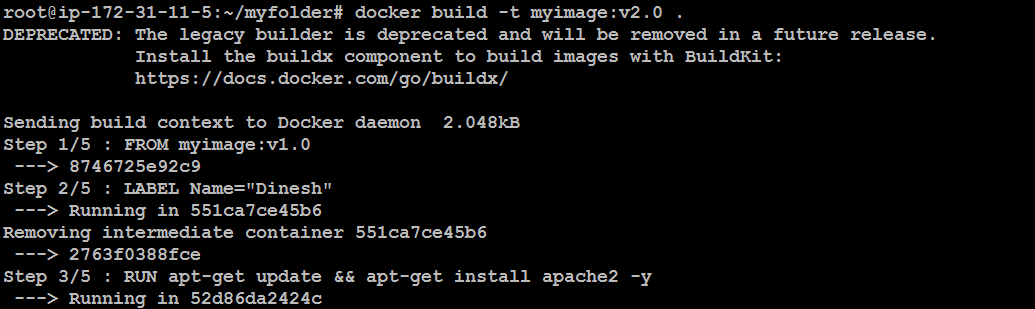
Now, Build the new Docker Image > Need to change Image name or Tag for new image.
I have changed tag v2.0
docker build -t myimage:v2.0 .


Verify the Image Creation :
docker images

Launching a Docker Container using Docker Image:
Already, we have created two images, i will use this docker image myimage:v2.0 for launch docker container
Step 1 : Verify the Available Docker Images
docker images

Step 2: Launching a Docker Container
docker run -itd -p "8080:80" myimage:v2.0
docker run: Runs a new container from a specified image.-it: Runs the container in interactive mode with a terminal (though the-dflag will detach it, so-itis not necessary here).-d: Runs the container in detached mode (in the background).-p "8080:80": Maps port 80 inside the container to port 8080 on the host machine.myimage:v2.0: Specifies the image to use for the container, with the tagv2.0.

Step 3: Verify the Running Container
docker ps
